Password-protected links & password page
Protect a link with a password and brand the unlock experience.
Password-protected links are useful when access should stay limited to people who know the password. T.LY also lets you brand the password page so visitors see your colors and logo before they open the destination. For the full announcement and branding examples, read How to Customize the Password Page.
When password protection makes sense
- Private campaign previews
- Client review links
- Internal resources or draft pages
- Temporary gated content you do not want indexed or shared widely
How it works
- Add a password when creating or editing a short link.
- Visitors must enter that password before T.LY sends them to the destination.
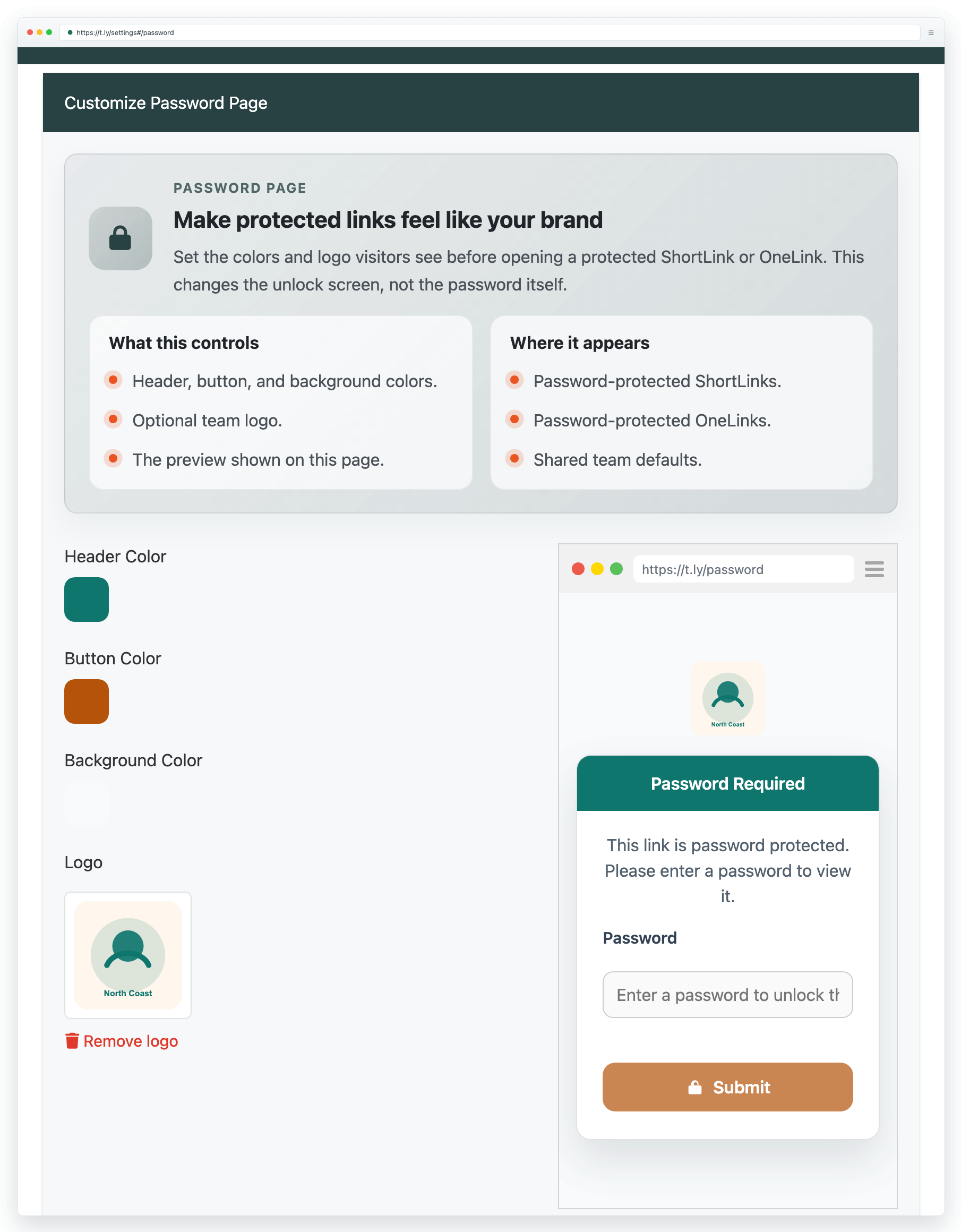
- The password page design can be customized at the team level in Settings > Password Page.
What you can customize
- Header color
- Button color
- Background color
- Logo image
What the password page applies to
The branded password page is the screen shown before visitors access protected ShortLinks or OneLinks. It changes the presentation, not the password itself.
Best practices
- Keep the design simple and high-contrast so the password form stays easy to use.
- Use a logo that is recognizable at small sizes.
- Test the page on desktop and mobile after making branding changes.
- If the page gets cluttered, use Reset Defaults in the settings screen and start from a simpler theme.
Need more help?
If you still have questions, contact [email protected] or use the contact form. For abuse or suspicious links, use Report Abuse. For feature requests, email [email protected].
 Browser Extension