QR code printing guide
Size, resolution, formats, and a pre-print checklist (business cards to billboards).
Printing QR codes that actually scan requires the right size, resolution, and format. This guide covers the basics so your codes scan reliably, from business cards to billboards.
QR Code Size Guide
The golden rule: bigger is always better for scannability.
| Print Material | Minimum Size | Recommended Size | Typical Scanning Distance |
|---|---|---|---|
| Business Cards | 0.6 in (1.5 cm) | 0.8 in (2 cm) | 4-8 in (10-20 cm) |
| Flyers & Brochures | 0.8 in (2 cm) | 1.2 in (3 cm) | 8-12 in (20-30 cm) |
| Posters (A3/A2) | 1.2 in (3 cm) | 2 in (5 cm) | 1-2 ft (30-50 cm) |
| Banners & Signage | 4 in (10 cm) | 6 in (15 cm) | 3-6 ft (1-2 m) |
| Billboards | 12 in (30 cm) | 20 in+ (50 cm+) | 10-16 ft (3-5 m) |
| Product Labels | 0.4 in (1 cm) | 0.6 in (1.5 cm) | 2-6 in (5-15 cm) |
Working in Canva
Use the published T.LY Canva app to generate a short link and add its QR code directly to a poster, flyer, menu, or business card. You can style the code and add the short URL as text. Keep a clear margin around the code and scan the final exported design at its intended print size before ordering a batch.
Choosing the Right File Format
The format you use determines print quality.
PNG (Raster)
- Best for: digital use, small print jobs, quick sharing
- Fixed resolution: can get blurry when enlarged
- Printing tip: export at 300 DPI at your final print size
SVG (Vector) - Recommended
- Best for: professional printing and large format
- Infinitely scalable: crisp at any size
- Print friendly: works well in most design tools and print workflows
Create Print-Ready QR Codes
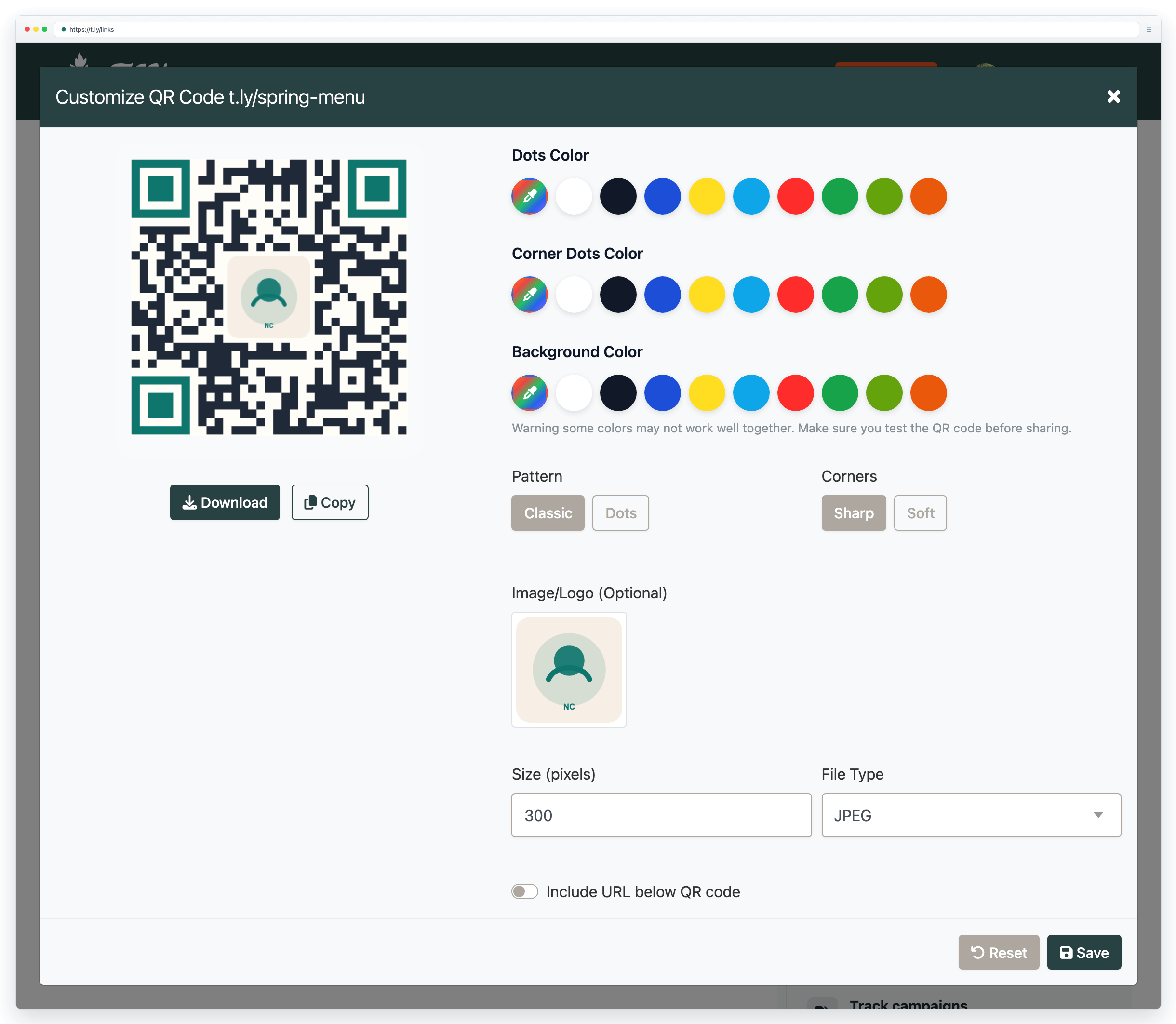
Create a QR code with an instant preview, then download it in the format you need:
- QR Code Generator (URL)
- More QR code types: WiFi, vCard, SMS, Email, Phone, Event, Location, Text, and more.
Pre-Print Checklist
Before you send your design to print:
- Test scan: scan with 2-3 different phones
- Check size: confirm against the size guide above
- Verify quiet zone: keep white space around all edges
- Check contrast: dark code on a light background
- Use vector for print: SVG is best for professional printing
- Print a test: proof before a large run
- Scan the test print: colors shift between screen and print
- Consider the surface: avoid glare and texture when possible
Common Printing Mistakes to Avoid
Too small
The #1 issue. Validate size for your use case and scanning distance.
Low resolution
Scaling up a small PNG creates blur. Use SVG or export a high-resolution image at final size.
No quiet zone
Do not crop the border or place design elements too close to the code.
Wrong material
Gloss and texture can cause scan failures. Test your real surface before a full run.
Untested codes
Always proof and scan your print. A typo can ruin thousands of prints.
Very long URLs in static codes
Long data can create dense patterns. Use short links or dynamic QR codes for simpler patterns.
Best Materials for QR Code Printing
- Recommended: matte paper, uncoated cardstock
- Use with caution: glossy paper (watch for glare), vinyl/stickers (matte vinyl works best)
- Avoid when possible: textured/linen paper, metallic/foil finishes
FAQ
What resolution should my QR code be for printing?
For raster formats (PNG/JPG), export at 300 DPI at your final print size. For example, a 2-inch QR code should be at least 600x600 pixels. Better yet, use SVG which stays crisp at any size.
Can I resize a QR code in design software?
If you have an SVG file, you can resize freely without quality loss in tools like Canva, Illustrator, or InDesign. If you have a PNG, you can make it smaller safely, but enlarging can cause pixelation. Maintain aspect ratio and keep white space around all edges.
My printed QR code does not scan. What went wrong?
Common causes are: (1) too small, (2) low contrast, (3) blurry/pixelated source, (4) glare/texture from the material, or (5) the quiet zone being cropped. Follow the QR code troubleshooting guide to narrow down the cause, then print a test proof and scan it on multiple phones before reprinting.
Ready to print?
Create a print-ready QR code and download SVG for crisp results at any size.
Create a QR Code Analyze QR Image Track QR ScansNeed more help?
If you still have questions, contact [email protected] or use the contact form. For abuse or suspicious links, use Report Abuse. For feature requests, email [email protected].
 Browser Extension