Tags
Organize links, filter reports, and target bulk actions or webhooks.
Tags are reusable labels you can attach to links so your team can organize work, filter reports, and target bulk actions or webhooks without rebuilding the same searches every time.
What tags are good for
- Campaign grouping: tag links by campaign, channel, client, market, or owner.
- Cleaner reporting: filter your Links list and exports by tag instead of searching one link at a time.
- Operational workflows: apply the same tag to links that should trigger a webhook or share the same bulk action.
- Team handoff: make it obvious which links belong together when multiple people manage the account.
Where to create tags
- Open Settings > Tags.
- Create the reusable tags your team needs most often.
- Attach those tags when creating or editing links, or apply them during bulk import/update flows.
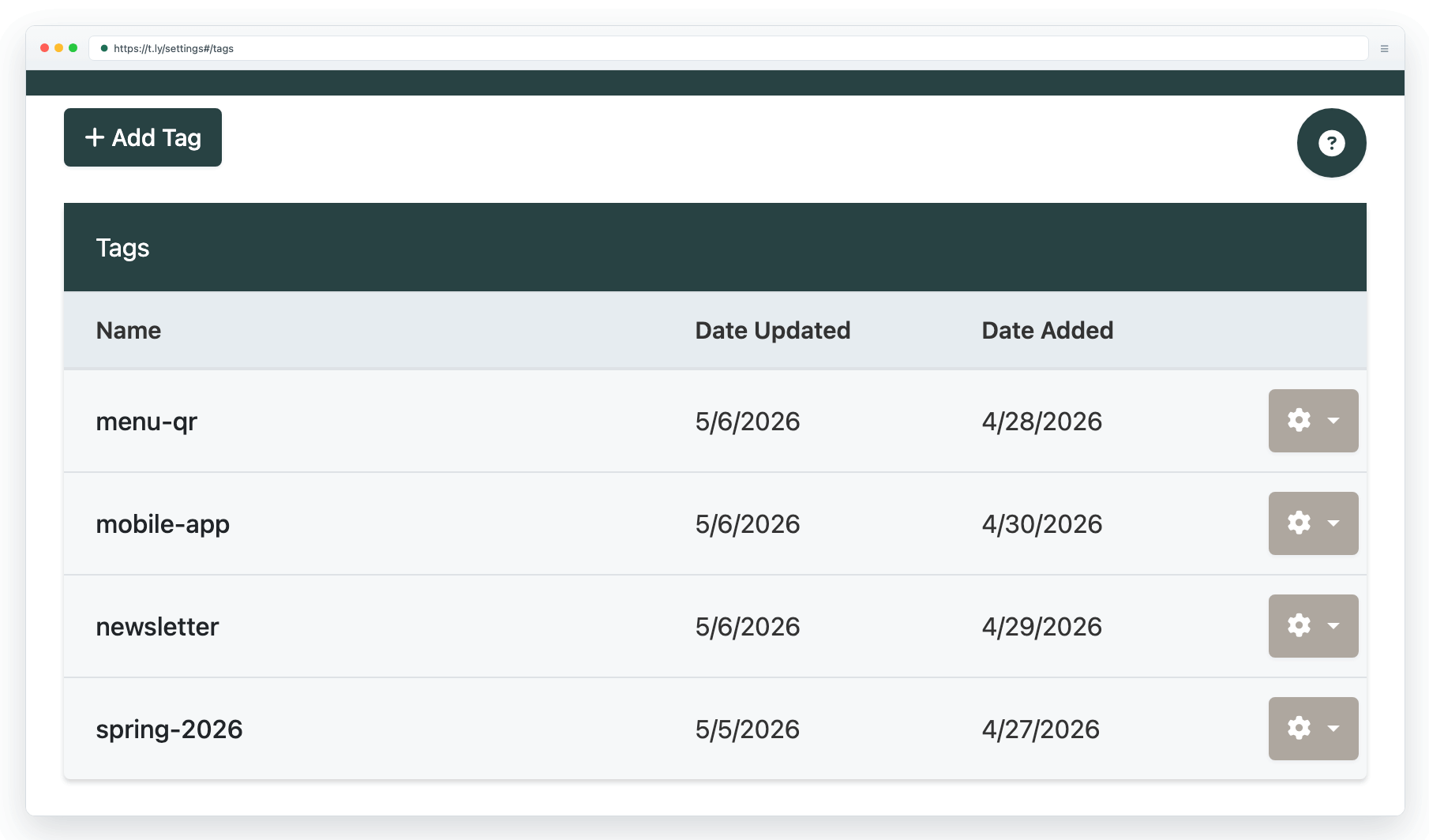
Simple naming patterns that scale
- Use short, predictable names like
spring-sale,instagram,client-acme, orowner-jamie. - Prefer one concept per tag. For example, separate
instagramandspring-saleinstead of creating one combined mega-tag. - Pick one style and keep it consistent: lowercase with hyphens is usually easiest to scan.
Recommended tag strategy
- Campaign tags: one for the promotion or initiative.
- Channel tags: one for email, social, QR, print, partners, or paid ads.
- Ownership tags: one for the client, brand, or internal owner when collaboration matters.
How tags work with other features
- Use tags with bulk import, bulk update, and exports so your CSV jobs stay organized.
- Use tags with webhooks when only some links should trigger deliveries.
- Use tags alongside UTM presets when you want both tidy organization and consistent attribution.
- Use tags with retargeting pixels to keep remarketing workflows easy to audit.
Need more help?
If you still have questions, contact [email protected] or use the contact form. For abuse or suspicious links, use Report Abuse. For feature requests, email [email protected].
 Browser Extension