Templates and styling
Choose a layout, tune branding, and keep OneLinks visually consistent.
Templates and styling decide how quickly visitors understand your OneLink page. A good layout makes the page easy to scan, easy to trust, and easy to tap on mobile.
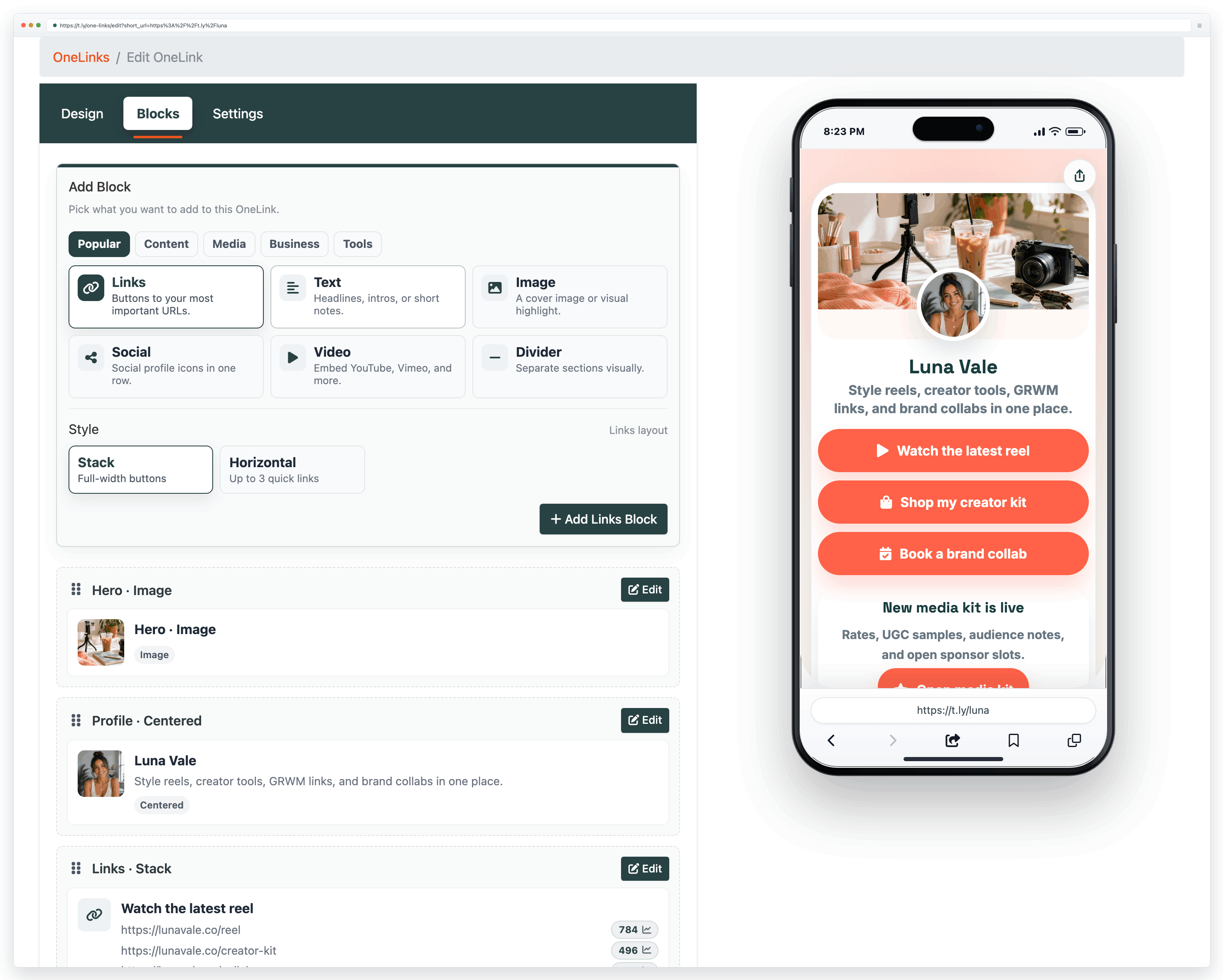
Start with the right template
- Choose a layout that matches the job: creator bio, business hub, event page, or resource list.
- Do not cram too many competing goals into one design.
- If you are unsure, start simple and add complexity only when the page proves it needs it.
Styling choices that matter most
- Title and bio: explain who the page is for and what visitors should do next.
- Avatar or logo: use a recognizable image that still reads clearly on mobile.
- Button colors: keep contrast high so the main action stands out.
- Button labels: make the outcome obvious, like
Book a demoorView menu.
Layout tips
- Put the most important action first.
- Group related links together instead of mixing unrelated actions.
- Preview on a phone before publishing because that is where most visitors will interact.
- Keep whitespace and breathing room so the page feels intentional rather than crowded.
When to redesign
- When your main call to action changes
- When a seasonal campaign should replace an old priority
- When your page has grown so large that visitors no longer know where to tap
- For performance guidance after redesigns, review OneLinks analytics.
Need more help?
If you still have questions, contact [email protected] or use the contact form. For abuse or suspicious links, use Report Abuse. For feature requests, email [email protected].
 Browser Extension