How do I use T.LY's UTM Builder?
Build a campaign URL with source, medium, campaign, content, and term tracking.
Use the UTM Builder when you want analytics tools like GA4, HubSpot, or Adobe Analytics to know where a visit came from. It adds campaign tracking fields to your URL and gives you one clean link to copy.
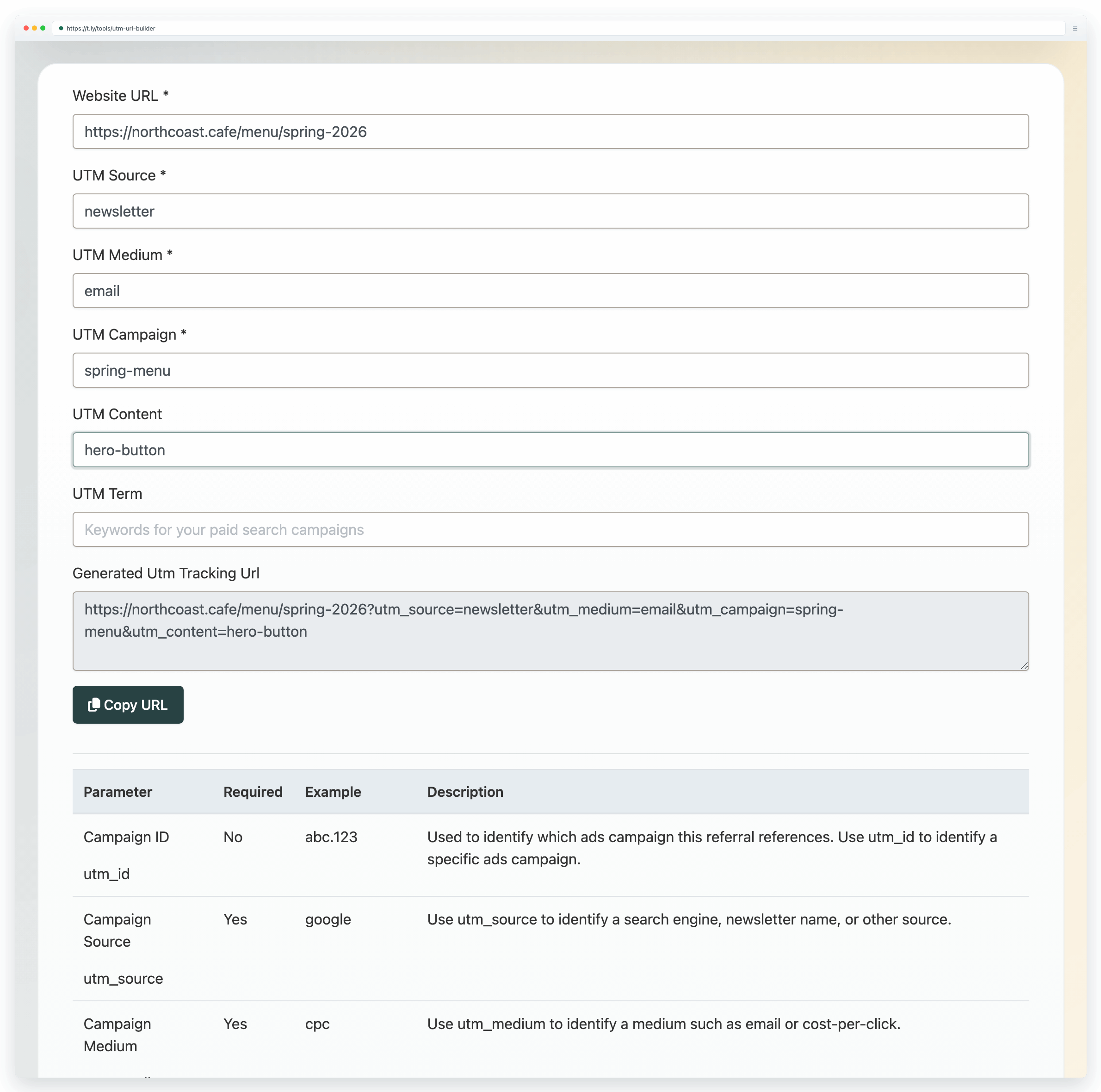
Build a UTM URL
- Open the UTM Builder.
- Paste the page you want people to visit in the website URL field.
- Add source, medium, and campaign. These are the main fields most teams need.
- Use content or term only when they help you separate ads, buttons, keywords, or placements.
- Copy the generated tracking URL.
What to put in each field
- Source: where the click comes from, like
newsletter,instagram, orgoogle. - Medium: the channel type, like
email,social,cpc, orqr. - Campaign: the promotion or launch name, like
spring-saleorproduct-launch. - Content: optional detail for a creative or placement, like
hero-buttonorfooter-link. - Term: optional keyword detail, mostly useful for paid search.
Example
If you are linking to a sale page from an email newsletter, you might use:
- Website URL:
https://example.com/sale - Source:
newsletter - Medium:
email - Campaign:
spring-sale
The generated URL will include values like utm_source=newsletter, utm_medium=email, and utm_campaign=spring-sale.
After you copy it
You can share the full tracking URL as-is, or shorten it with T.LY before posting it in email, social, ads, QR codes, or partner campaigns. If you shorten it, keep one short link per channel or placement when you want cleaner reporting.
Need more help?
If you still have questions, contact [email protected] or use the contact form. For abuse or suspicious links, use Report Abuse. For feature requests, email [email protected].
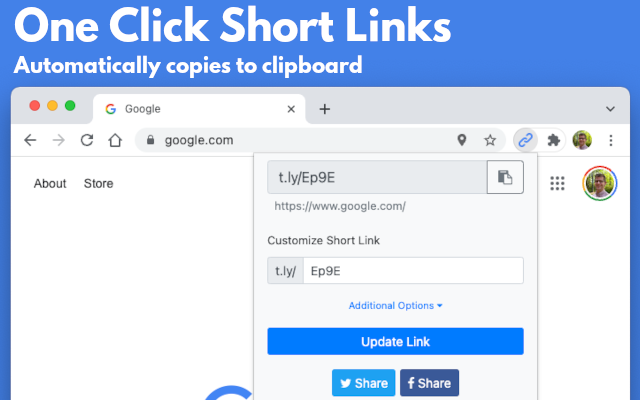
 Browser Extension