OneLink blocks: what to use and when
Choose the right blocks for links, media, products, bookings, reviews, FAQs, and more.
A good OneLink does not need every block. It needs the few blocks that help someone understand who you are and take the next useful action.
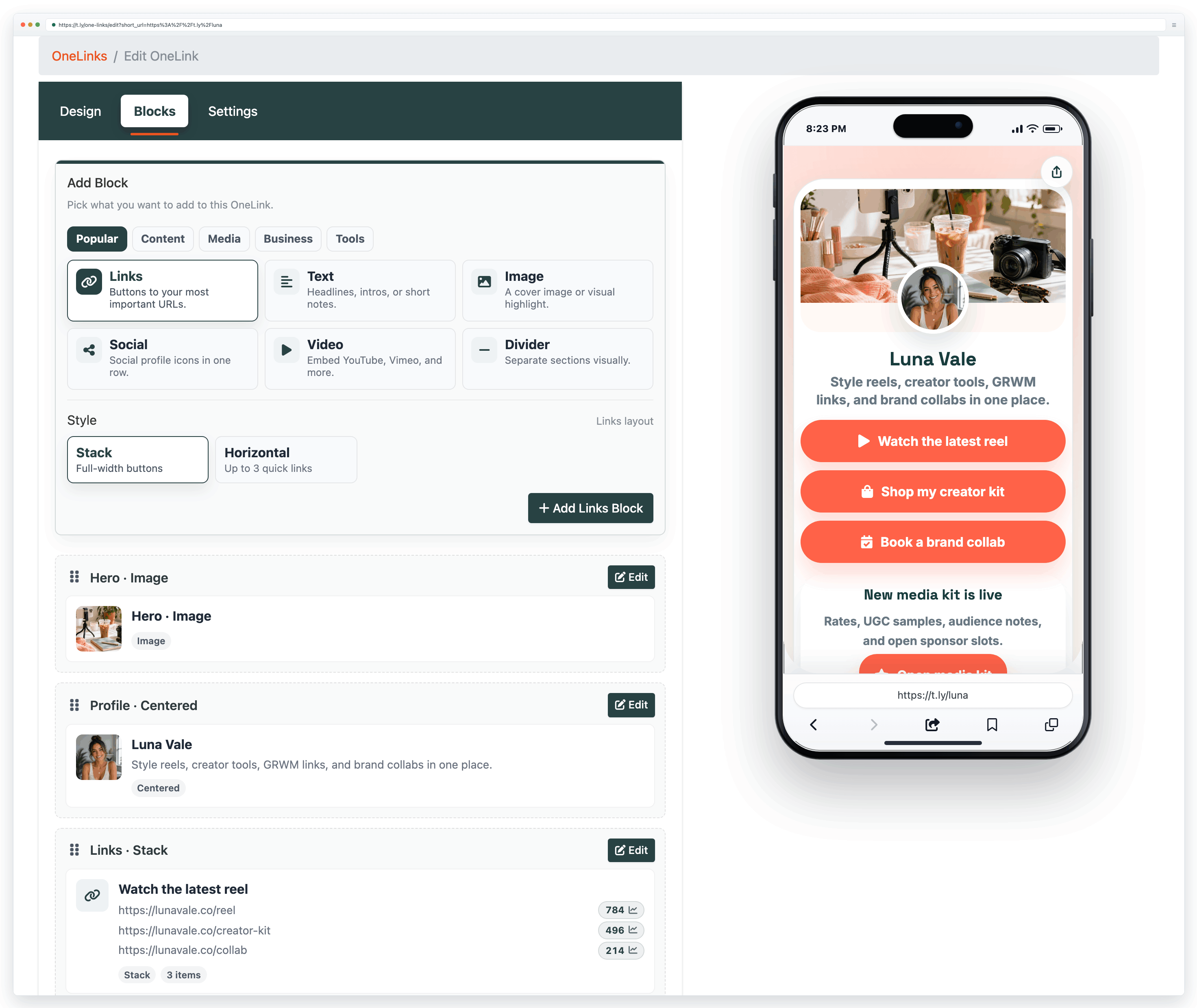
Start with the job of the page
Before adding anything, finish this sentence: "This page should help people ______." Book an appointment. Shop a collection. Find event details. Contact the team. Watch the latest video.
Your answer decides which block belongs near the top.
Identity and page structure
- Profile: name, short bio, and profile photo. Use it for creator pages, digital business cards, and personal brands.
- Hero: a large opening section with an image and stronger visual impact. Use it when a campaign, product, or event needs to lead the page.
- Text: headings, intros, instructions, or short notes. Keep it brief enough to scan on a phone.
- Image: a cover, promotion, menu preview, sponsor graphic, or other visual highlight.
- Divider: a quiet break between sections. It is useful when the page covers more than one topic.
Actions and contact
- Links: the main buttons on most OneLinks. Use a stacked layout for primary actions, horizontal for a few quick links, or bento when the visual hierarchy matters.
- Social: a compact row of social profiles. Keep this below the main action unless growing a social account is the page goal.
- Contact: call, text, email, and website actions. This is a strong fit for service businesses and digital business cards.
- Booking: embed a scheduling tool so visitors can choose a time without hunting for the right link.
Media, proof, and useful details
- Video: embed a YouTube, Vimeo, or supported video when watching is the next step.
- Podcast: add a podcast player for a show, episode, or audio series.
- Gallery: show several images in a grid or carousel. Good for portfolios, menus, venues, products, and event recaps.
- FAQ: answer objections without sending people to another page. Use an accordion when there are several questions.
- Review request: ask for feedback and route people to the right review destination.
- Map: show a location, address, and hours. Use it for storefronts, events, offices, and pop-ups.
Products, promotions, and urgency
- Products: feature items, prices, and product links. Choose a grid for browsing or a featured layout when one offer matters most.
- Callout: give one offer, update, or announcement more visual weight.
- Countdown: count down to a launch, event, deadline, or drop. Remove it when the deadline passes.
QR code
The QR code block puts a scannable URL or vCard on the page. It is useful when someone opens the OneLink on a desktop and wants to continue on a phone, or when a digital business card needs a quick contact handoff.
Four layouts that work
Creator or influencer
Hero or Profile → Links → Video or Gallery → Callout → Social.
Local business
Hero → Callout → Booking or Contact → Map → Review request → FAQ.
Product launch
Hero → Countdown → Products → Video or Gallery → FAQ → Links.
Digital business card
Profile → Contact → Links → Social → QR code.
Keep the page easy to use
- Put the most important action in the first screen on a phone.
- Use one block for one job. Two competing link lists usually need to become one.
- Write button labels that say what happens next, such as "Book a demo" or "View the menu."
- Preview every embed and test every link before sharing.
- Remove expired countdowns, old promotions, and stale event details.
- Check OneLink analytics to see which buttons get used. Move strong actions up and cut blocks people ignore.
Related guides
Need more help?
If you still have questions, contact [email protected] or use the contact form. For abuse or suspicious links, use Report Abuse. For feature requests, email [email protected].
 Browser Extension