Default QR codes
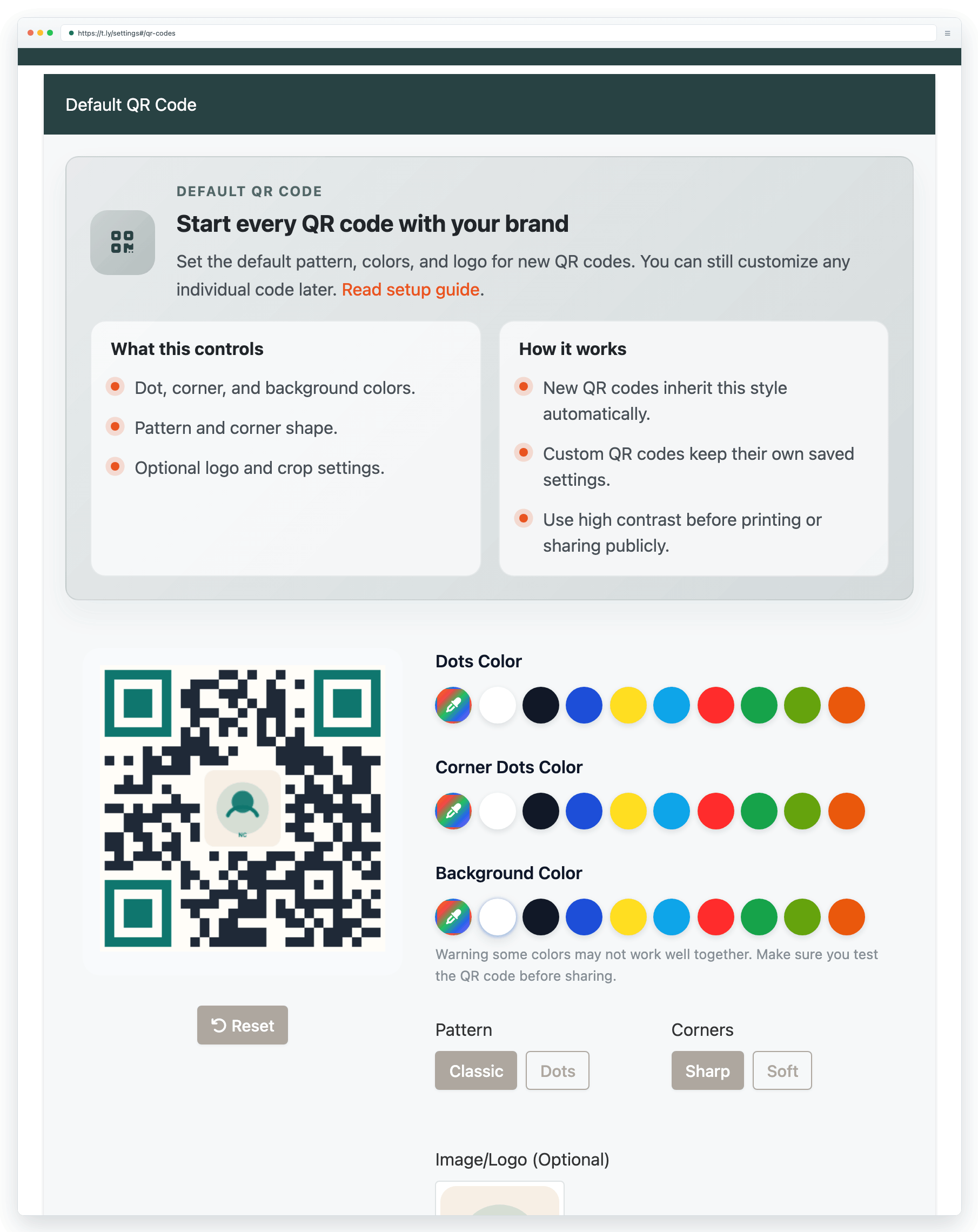
Set your team-wide default QR style for colors, patterns, corners, and logo.
Default QR code settings give your team a consistent baseline style for new QR codes. Instead of restyling every code from scratch, you can save one branded starting point and only customize individual codes when a campaign needs something different.
What the default affects
- Dots color
- Corner color and corner style
- Background color
- Pattern style
- Optional logo
How defaults work
- Open Settings > QR Codes.
- Choose the default colors, pattern, corners, and optional logo.
- Save that design as your team default.
- New QR codes inherit those defaults unless you customize a specific code separately.
When defaults are most useful
- Franchises or multi-location teams that want a recognizable style
- Marketing teams producing many QR codes across campaigns
- Agencies that need brand consistency for repeated client work
Scannability first
- Use strong contrast between the QR dots and the background.
- Keep logos modest in size and test with real phones before wide release.
- If you pick unusual colors or soft corners, validate them in print and on screen.
When to override the default
- When a special campaign needs its own look
- When one QR code will be printed much larger or much smaller than usual
- When you need a cleaner, simpler code for difficult scanning conditions
- For broader QR workflows, pair this with QR code printing guide and QR code not scanning.
Need more help?
If you still have questions, contact [email protected] or use the contact form. For abuse or suspicious links, use Report Abuse. For feature requests, email [email protected].
 Browser Extension