WiFi QR codes
Let guests connect instantly without typing your password.
A WiFi QR code lets guests connect to your network by scanning a code instead of typing a password. It is ideal for restaurants, offices, rentals, events, and anywhere people frequently ask for WiFi.
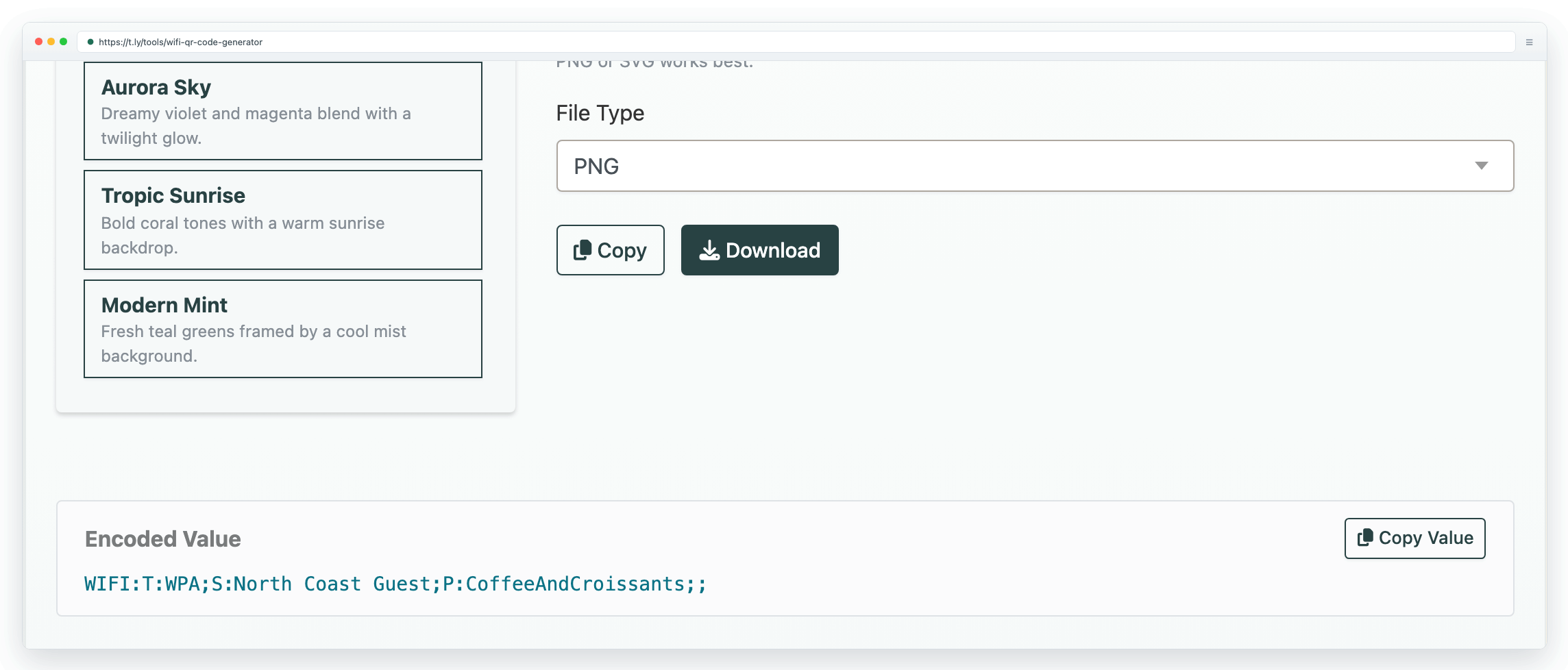
How WiFi QR codes work
Three simple steps to instant WiFi access:
- Create your code: enter your network name (SSID), password, and security type.
- Display it: print the code and place it where guests can see it (front desk, table tents, meeting rooms, etc.).
- Guests connect: visitors scan with their phone camera and tap to join.
Perfect for every business
Restaurants & cafes
Place a WiFi QR code on table tents or menus so customers connect without asking staff.
Hotels & rentals
Frame a QR code in rooms or include it in a welcome guide so guests connect quickly.
Offices & coworking
Display in meeting rooms and common areas so visitors can join without interruptions.
Events & conferences
Put WiFi QR codes on signage or slides so large groups can connect quickly.
Retail stores
Offer guest WiFi to keep customers browsing longer and improve in-store experience.
Home & guests
Keep a small framed code near the router or in a guest room for easy access.
Why use a WiFi QR code?
- No password typing: long passwords become one scan.
- Works on modern phones: iPhone and Android devices can typically scan with the camera.
- Fewer support requests: reduces "What is the WiFi password?" interruptions.
- More professional: clean, modern guest experience.
Is it safe?
A WiFi QR code is a convenient way to share your WiFi credentials. Treat it like sharing the password in print. If someone can see the code, they can attempt to join the network.
Best practices:
- Use a guest network (recommended) instead of your primary network.
- Change the guest password periodically and print a new QR code.
- Use WPA2/WPA3 security on your router when available.
- Do not post the code publicly if you do not want public access.
Printing tips
- Make it big enough: start at about 2 cm x 2 cm for close-up scanning.
- Use high contrast (dark code on a light background).
- Test scan before printing a large batch.
For a full checklist and size guide, see the QR code printing guide.
FAQ
What information do I need to create a WiFi QR code?
You typically need three things: your network name (SSID), the password, and the security type (often WPA/WPA2).
Does the QR code work if I change my WiFi password?
No. The credentials are encoded into the QR code. If you change your WiFi password (or SSID), generate and print a new code.
Can people see my password in the QR code?
QR codes are designed to be read by scanners. If you display a WiFi QR code, assume it is equivalent to displaying the WiFi password. For sensitive networks, use a guest network.
Do WiFi QR codes work on iPhones?
Most modern iPhones can scan QR codes from the Camera app. Open the camera, point at the code, then tap the prompt to join the network.
Do WiFi QR codes work on Android phones?
Most modern Android phones can scan QR codes from the Camera app or Google Lens. Some older devices may require a QR scanner app.
Need more help?
If you still have questions, contact [email protected] or use the contact form. For abuse or suspicious links, use Report Abuse. For feature requests, email [email protected].
 Browser Extension