Two-factor authentication (2FA)
Protect your account with an extra verification step.
Two-factor authentication (2FA) adds an extra layer of security beyond your password by requiring a second verification step.
Why use 2FA?
- Helps protect your account if your password is ever compromised
- Reduces the risk of unauthorized access to link and QR management
- Recommended for teams and anyone managing high-volume campaigns
How to enable 2FA
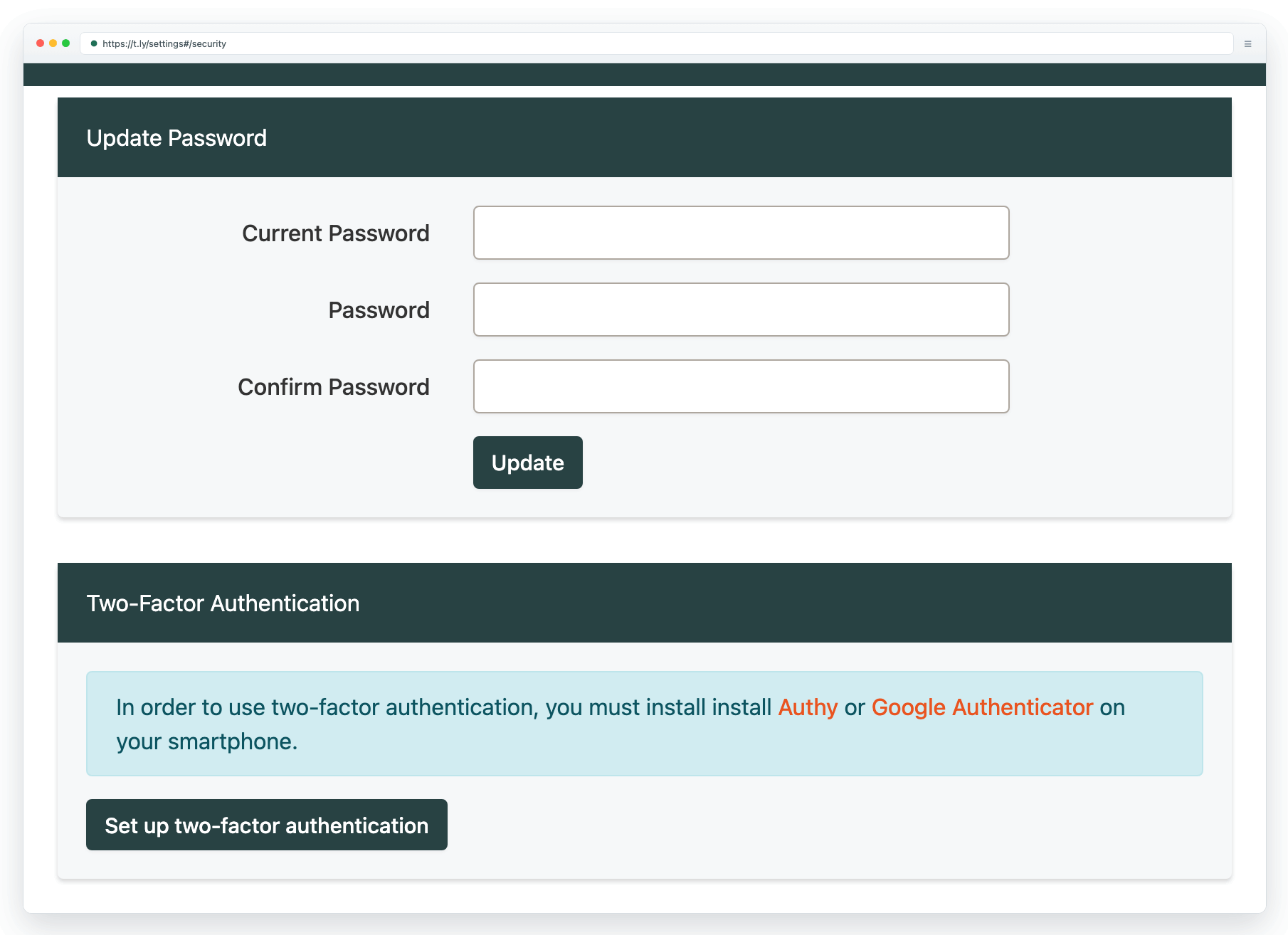
Enable two-factor authentication from your account security settings:
- Go to Settings > Security
- Under Two-Factor Authentication, click Enable and follow the prompts
Need more help?
If you still have questions, contact [email protected] or use the contact form. For abuse or suspicious links, use Report Abuse. For feature requests, email [email protected].
 Browser Extension