Manage and edit links
Passwords, expiration rules, Smart URLs, rotation, and editing links.
When you need more than a simple redirect, T.LY includes tools to help you control who can access a link, when it expires, and where it sends people.
Edit a short link
Editing links requires an account. From your dashboard you can update the slug, destination URL, password, expiration rules, and other settings in Link Management.
Password protect a link
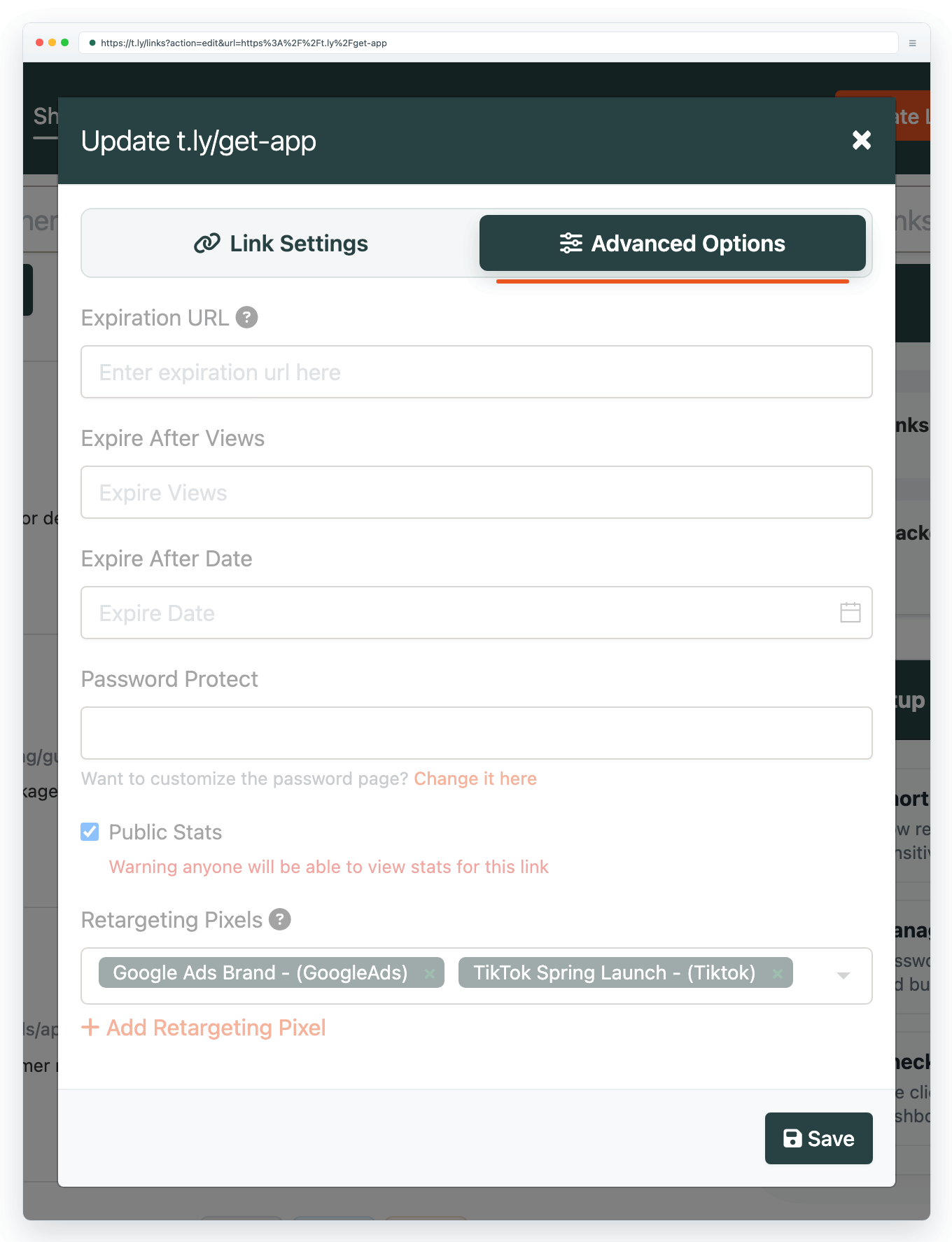
Add a password so only people with that password can visit the destination. Manage this in Link Management. For a walkthrough, see how to password protect a short URL.
Expire a link
Set a link to expire after a specific date or after a maximum number of clicks. Configure this inside Link Management.
Smart URLs (routing)
Smart URLs can redirect people to different destinations based on device, location, or browser. This is useful when one campaign needs multiple landing pages.
Example: https://t.ly/extension routes users to the correct extension install page. Build Smart URLs in Link Management.
A/B rotation
A/B rotation sends one short link to multiple destinations using weighted variants. Use it for simple split tests or soft launches. For the full setup, see A/B rotation links.
Bulk tools
If you are working with lots of links, use Bulk Actions in your Links dashboard to import, update, export, or delete links in batches. For CSV fields and migration steps, see Bulk import, update, and export links. To check a CSV you already uploaded, open Import History.
No-code automation
If you want to connect T.LY to other apps without writing code, use the Zapier integration or the Pabbly Connect integration. If you are building agent workflows, use the T.LY ClawHub skill.
Need more help?
If you still have questions, contact [email protected] or use the contact form. For abuse or suspicious links, use Report Abuse. For feature requests, email [email protected].
 Browser Extension