You can change a short link after you create it, even if it's already been shared. Update where it goes, rename the ending, or add options like a password or expiration date. Your click stats stay with the link.
How to edit a short link
- Sign in and open Links.
- Find the link. Use search if you have a lot of them.
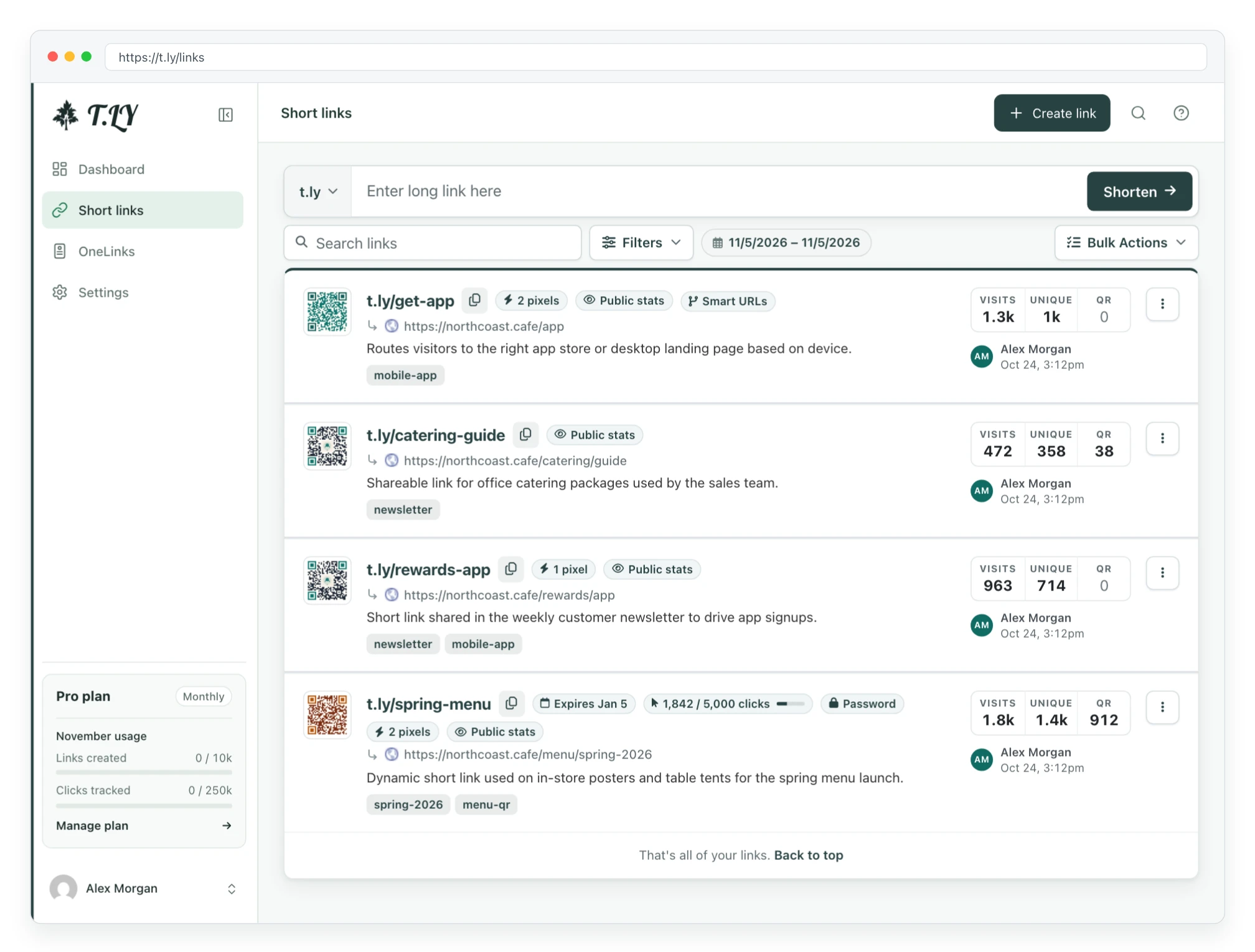
- Click the short URL in the list, or open the ⋮ menu on its row and choose Edit Link.
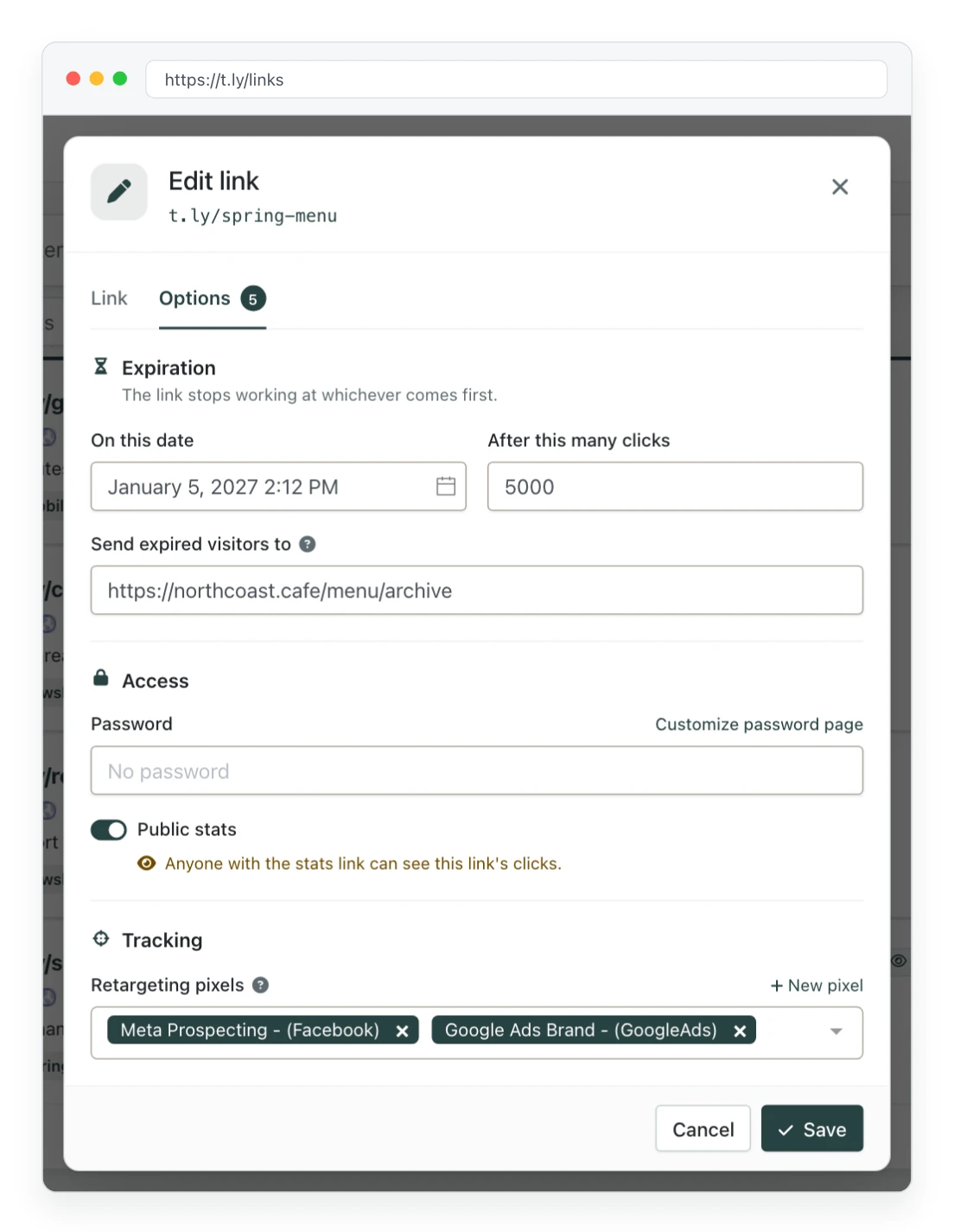
- Make your changes on the Link or Options tab.
- Click Save. The change takes effect right away.
What you can change
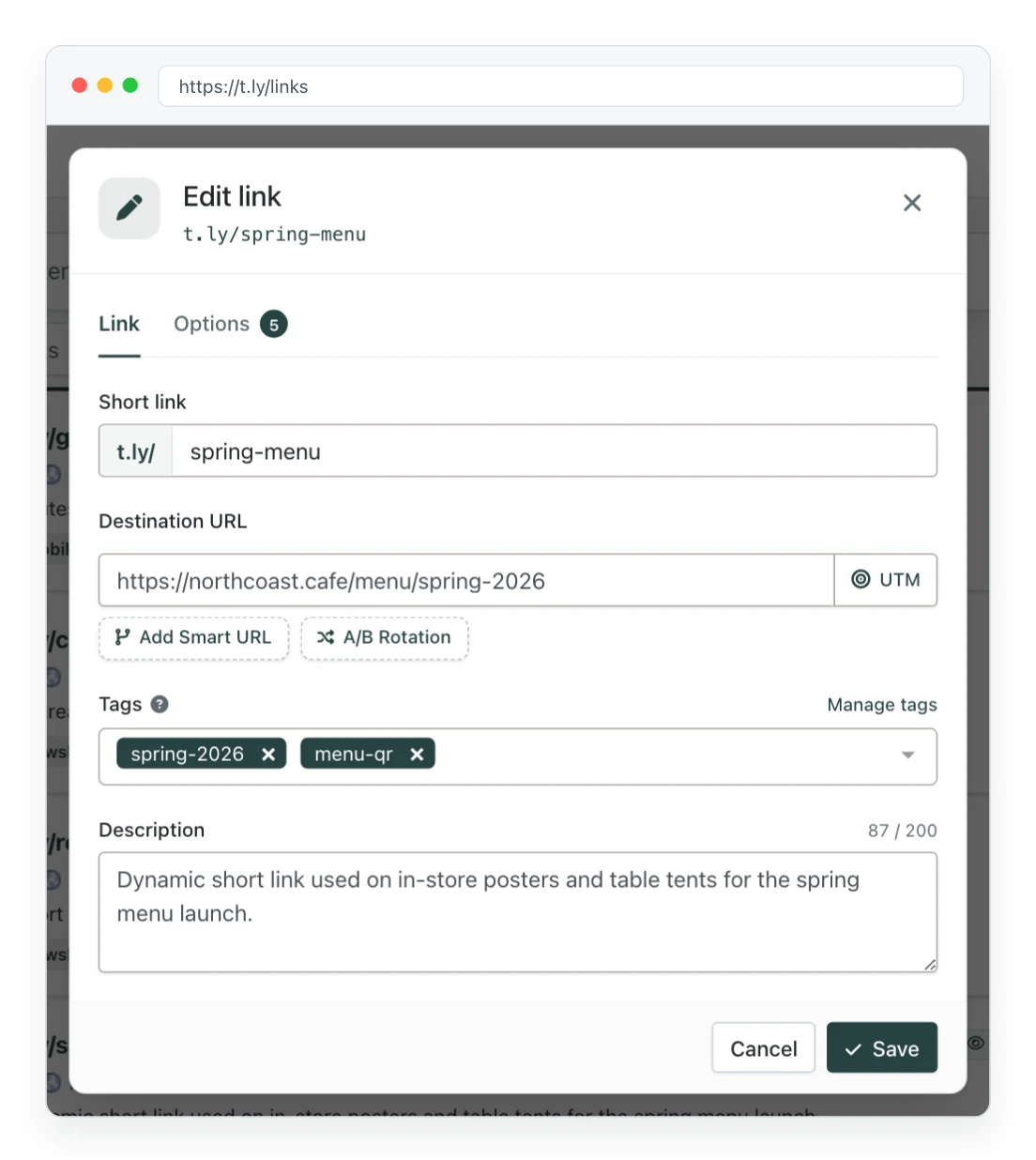
Link tab
- Short link: the ending after the domain, such as
spring-menuint.ly/spring-menu. - Destination URL: where visitors are sent. Click UTM to add campaign parameters.
- Smart URLs and A/B rotation: route visitors by device or location, or split traffic between pages. See Smart URLs and A/B rotation links.
- Tags and description: help you find and organize the link later.
Options tab
- Expiration: stop the link on a date or after a set number of clicks, and choose where expired visitors go.
- Password: require a password before visitors reach the destination. See Password page.
- Public stats: let anyone with the stats link see the link's clicks.
- Retargeting pixels: attach tracking pixels. See Retargeting pixels.
The domain can't be changed on an existing link. To move a link to another domain, create a new link on that domain.
Changing the destination vs. changing the ending
Changing the destination is safe for links you've already shared. The short URL stays the same, so posts, emails, printed flyers, and QR codes keep working and start sending people to the new page. Your stats carry over.
Changing the ending creates a new short URL. The old URL stops working as soon as you save. Anything that already uses it will break, including QR codes that have been printed. Change the ending only if the link hasn't been shared yet, or if you can update every place it appears.
When you choose a new ending:
- It must not already be used on that domain. If it is, you'll see URL ending already in use.
- It can't contain
?or#. - Endings are case sensitive, so
Saleandsaleare different links.
See what changed
Open the ⋮ menu on a link and choose History to see past edits to that link. It's useful for checking who changed a destination on a shared team.
Edit links in bulk or with the API
- Many links at once: use Bulk Actions on the Links page. See Bulk import, update, and export links.
- From your own app: send a
PUTrequest to/api/v1/link. See the API guide.
Can't edit a link?
- No Edit Link option: the link may have been disabled for safety. Open the link's menu to submit an appeal.
- Link not in your list: check that you're in the right team. Links belong to the team they were created in.
- Created without signing in: links you made while signed out aren't in your dashboard, so they can't be edited there. Create a new link while signed in.