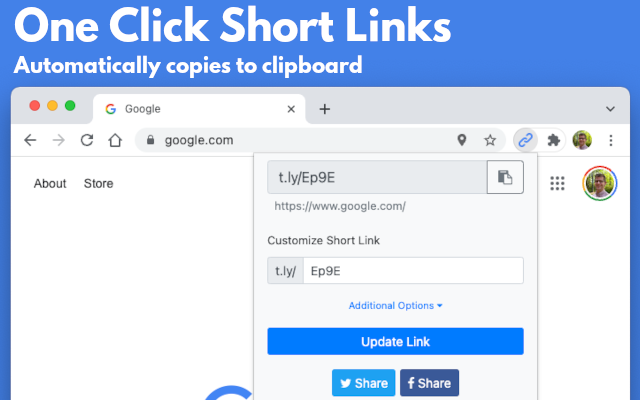
Browser extension troubleshooting
Fix token, right-click, clipboard, custom-domain, and popup problems by symptom.
Start with the symptom you see. Most extension problems come from one saved setting, an expired token, or a browser restriction on the page you are viewing.
Open the extension's settings
Right-click the T.LY extension icon and select Options. If the icon is hidden, open your browser's extensions menu and pin T.LY to the toolbar.
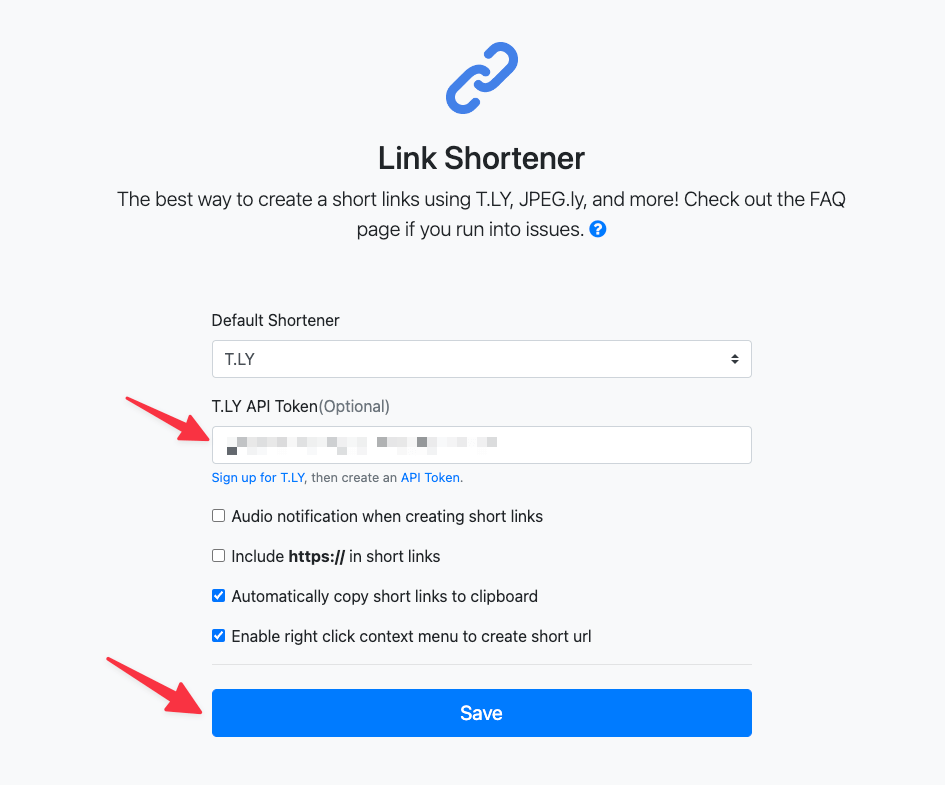
The extension says the API key is invalid or required
A T.LY API token connects the extension to your account. It also lets the extension load your custom domains and create links you can manage later.
- Sign in to T.LY and open Settings > API.
- Create a token named Browser Extension.
- Copy the token when it is shown. T.LY does not display the full token again.
- Open the extension's Options.
- Set Default Shortener to T.LY.
- Paste the token into T.LY API Token, select Save, then reopen the extension.
If the saved token still fails, create a new token and replace it. This is the fastest fix for a token that was deleted, copied only partially, or exposed and revoked. Do not send the token to support.
"Shorten Link and Copy" is missing from the right-click menu
- Open the extension's Options.
- Turn on Enable right click context menu to create short url.
- Select Save.
- Reload the page before testing again.
Test on a normal https:// webpage. Browsers block extensions on their own settings pages, extension stores, some PDF viewers, and other protected pages. If the menu is still missing on regular pages, restart the browser.
The link is created but is not copied
- Open Options and turn on Automatically copy short links to clipboard.
- Select Save.
- If your browser asks whether T.LY can run on the current page, allow it and try again.
- Test on a regular webpage instead of a browser settings page or extension-store page.
You can always open the extension popup and use its copy button. If copying works there but not from the right-click menu, the current page is probably blocking extension scripts.
My T.LY custom domain is missing
The custom-domain selector only appears after the extension validates a T.LY token and finds a domain on the account's current team.
- Confirm the domain is active in Settings > Domains.
- If you belong to more than one team, switch to the team that owns the domain.
- Reconnect the T.LY token in the extension's Options.
- Wait for the domain selector to appear, choose the domain, and select Save.
If the selector never appears, create a new T.LY token and try again.
The extension returns the wrong domain
- Open Options and set Default Shortener to T.LY.
- Add a valid T.LY token and choose the T.LY or custom domain you want to use.
- Select Save.
- Try the same destination again.
If the domain is still wrong, confirm the selected domain belongs to the current T.LY team. If the settings fail to load, a firewall, privacy extension, or network filter may be blocking requests to api.t.ly.
Clicking the icon does not shorten the current page
- Check whether Automatically shorten the current tab URL on icon click is enabled. When it is off, paste a URL into the popup and select Shorten.
- Reload the page after installing or updating the extension.
- Try a regular public webpage. Browser-owned pages and local files may not expose their URL to extensions.
- Temporarily disable another extension that changes URLs, clipboard behavior, or page permissions.
Last resort: reset the extension
Restart the browser first. If the problem continues, export any extension history you want to keep, then remove and reinstall T.LY. Reinstalling can clear saved providers, tokens, domains, and local history.
What to send support
Contact support with:
- Browser name and version.
- T.LY extension version.
- Selected provider.
- The exact error message.
- Whether the popup, right-click menu, or both are affected.
Do not include API tokens or private destination URLs in a screenshot.
Need more help?
If you still have questions, contact [email protected] or use the contact form. For abuse or suspicious links, use Report Abuse. For feature requests, email [email protected].
 Browser Extension