QR code not scanning
Troubleshoot the most common QR scan failures and fix them fast.
Nothing is more frustrating than a QR code that will not scan. Whether it is your own code or one you are trying to read, this guide covers the most common issues and how to fix them.
Quick fixes to try right now
- Clean the camera lens: a smudged lens is a common cause of scan failures
- Move closer or farther: the code should fill about one-third of the screen
- Hold steady: give the camera time to focus
- Improve lighting: move to a brighter area or shade the code from direct sunlight
- Flatten the surface: curved or wrinkled codes are harder to read
- Try a different angle: reduce glare on glossy surfaces
Why QR codes fail to scan
Too small
Most QR codes should be at least 2 cm x 2 cm for close-up scanning. Use the 10:1 rule: for every 10 cm of scanning distance, add 1 cm to the QR code size. Billboard QR codes often need to be 30 cm (12 in) or larger.
Low contrast
QR codes need strong contrast between dark and light areas. Black on white works best. Avoid light colors on light backgrounds or dark colors on dark backgrounds.
Damaged or obscured
Scratches, dirt, glare, or physical damage can prevent scanning. QR codes support error correction, but excessive damage (or an oversized logo) can make them unreadable.
Poor lighting
Too dark or too bright can cause failures. Direct sunlight can create glare on glossy surfaces. Try shading the code or moving to softer light.
Blurry or low resolution
If the image is pixelated or blurry, cameras cannot read the pattern. For print, use SVG when possible or export a high-resolution PNG at your final print size (300 DPI is a good baseline).
Camera issues
A dirty lens, outdated phone software, or a device without built-in QR scanning can cause problems. Clean the lens, update your OS, and try a QR scanning app if needed.
Best practices for scannable QR codes
- Use high contrast colors (black on white is ideal)
- Maintain a quiet zone (clear border) around the code
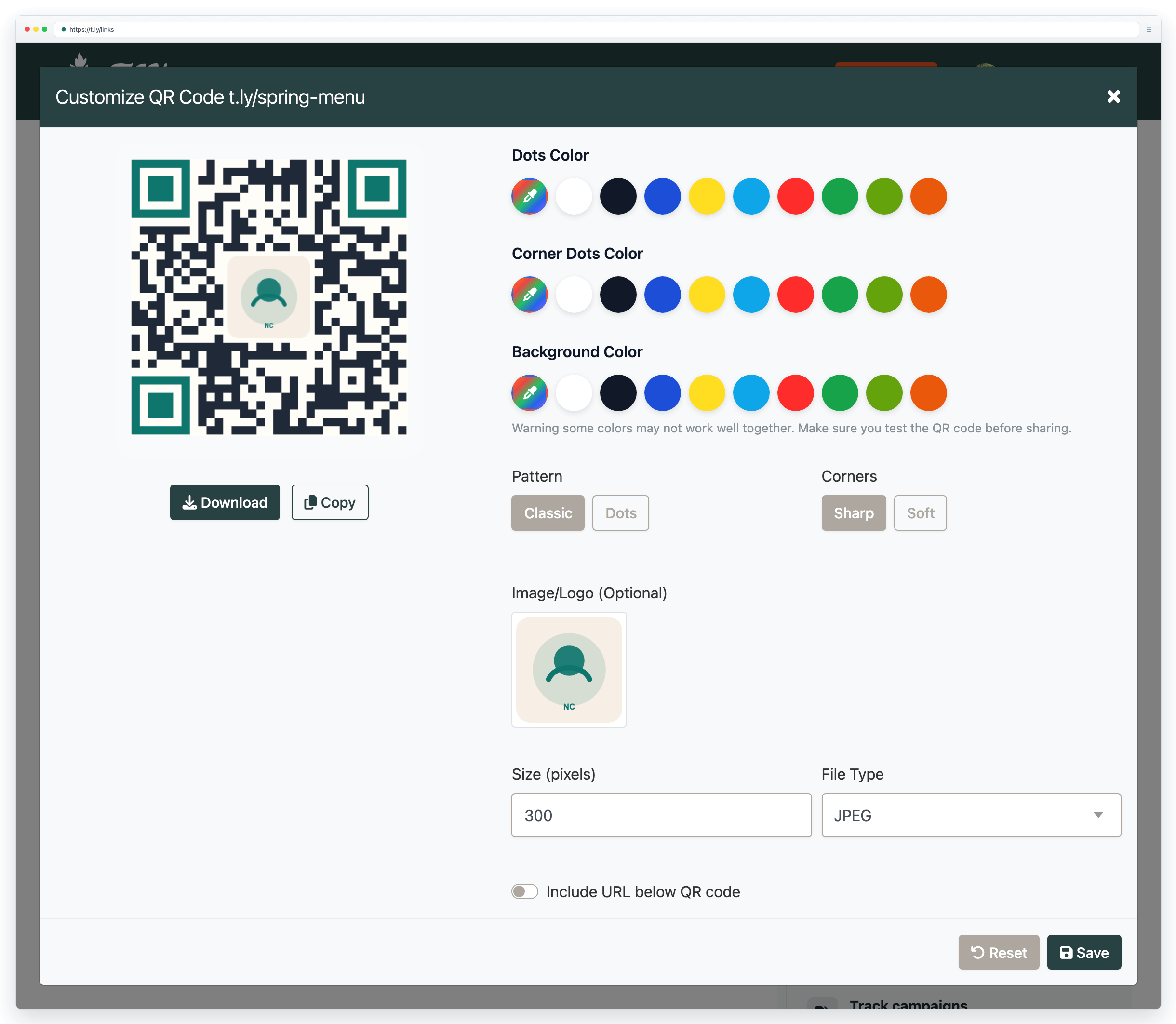
- Keep logos under ~30% of the code area (then test scan)
- Use SVG or a high-resolution PNG for printing; see the QR code printing guide for sizing and export settings.
- Test on multiple devices before a large print run
Things to avoid
- Do not invert colors (light code on dark backgrounds can fail)
- Do not use low-contrast color combinations
- Do not stretch or distort the QR code
- Do not print too small or on textured/glossy surfaces without testing
- Do not place codes where they are likely to be scratched or damaged
FAQ
Why will not my iPhone scan QR codes?
QR scanning is built into the Camera app on iOS 11 and later. Open the Camera, point at the code, and wait for the banner. If nothing appears, go to Settings > Camera and enable Scan QR Codes, then clean your camera lens and try again.
Why will not my Android phone scan QR codes?
Most modern Android phones scan through the Camera app or Google Lens. Try tapping the Lens icon (if available) or enabling QR scanning in camera settings. If your phone does not support it, install Google Lens or a QR scanner app.
Can a QR code be too dense to scan?
Yes. Very long URLs or large amounts of text create dense patterns with tiny modules that are harder to read. To fix this, shorten the URL, use a redirect link, or use a dynamic QR code so the pattern stays simpler.
Do QR codes work on screens?
Yes. Increase screen brightness and reduce glare by adjusting the viewing angle. Avoid scanning through reflective glass or plastic when possible.
Why does my QR code work on some phones but not others?
Older phones or lower quality cameras can struggle with small or dense codes and low-contrast designs. Make the code larger, increase contrast, and simplify the encoded content for better compatibility.
Can colored QR codes cause problems?
They can if contrast is poor. Safer choices are dark colors like navy, dark green, or dark purple on a white (or very light) background. Avoid combinations like yellow on white or light gray on white where dots blend into the background.
Need more help?
If you still have questions, contact [email protected] or use the contact form. For abuse or suspicious links, use Report Abuse. For feature requests, email [email protected].
 Browser Extension