How to Customize the Password Page
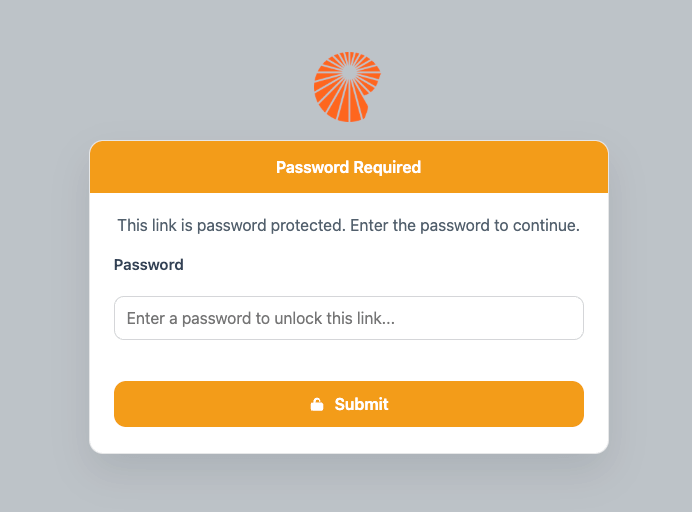
When you share a password-protected link, the password page is the first thing people see before they can access your content. Until now, that page often looked generic: functional, but not quite you. For the shorter support-center overview, see Password-protected links & password page.
Now you can customize your password page with buttons, background colors, and your logo so the experience matches your brand from the first click.
Why this update matters
Password protection is about security, but it is also about experience. When someone lands on a password page that looks familiar and consistent, they are more likely to trust it and keep going.
Here are a few of the most significant benefits.
1) Maintain brand consistency from click to conversion
Your links may live in emails, social posts, customer portals, or partner materials, which are all places where brand consistency matters. With custom colors and a logo on the password page, the transition from your message to the protected content feels smoother.
Instead of a jarring "who does this belong to?" moment, your audience sees a branded, polished page that reinforces recognition.
2) Build user trust at a critical moment
A password prompt can create uncertainty, especially for first-time viewers. A branded password page helps reassure visitors that the link is legitimate and intentional.
When the page looks like your organization, people are more likely to trust the request and less likely to hesitate, abandon, or report it as suspicious.
3) Create a more professional, polished experience
Small details add up. A cohesive password page signals that you care about the end-to-end experience, not just the destination. Whether you're sharing a campaign preview, an internal document, or a client deliverable, branding the password page makes the interaction feel more premium and more consistent with the rest of your workflow.
How it works
Customizing your password page is quick and straightforward:
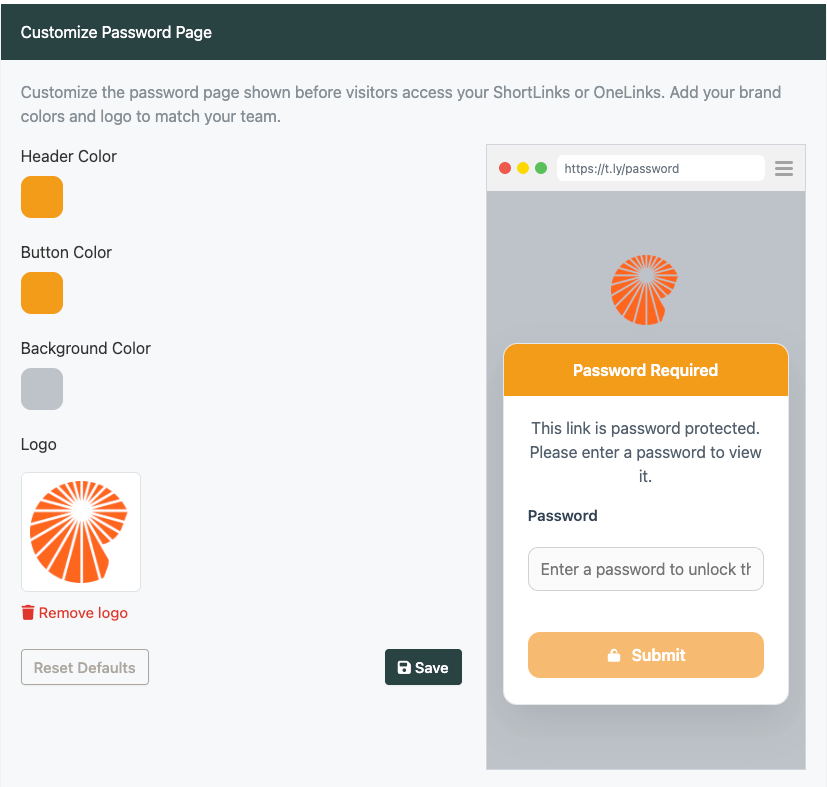
- Open your password page customization settings in your dashboard.
- Choose your brand colors:
- Set a Header Color to match your brand's primary tone
- Pick a Button Color that stands out and feels on-brand
- Select a Background Color for a clean, readable layout
- Upload your logo (drag and drop or click to upload).
- Preview the page as you customize so you can see exactly how it will look to visitors.
- Save your changes and you are done.
From that point forward, visitors who open password-protected links will see your customized page before entering the password.
Ready to make your password page look like you?
If you use password protection to share anything customer-facing, this is an easy win. A few minutes of customization can keep the experience consistent, strengthen trust, and make the link feel like it came from your team.
Head to your settings, customize your password page with your colors and logo, and make your following password-protected link feel like it came straight from your team.
Related Posts


Tim Leland
Useful Tools
Ready to improve how you manage links?
T.LY URL Shortener makes long links look cleaner and easier to share! Add your own Custom Domains to personalize your brand. Create Smart Links to customize a URL's destination. Generate QR codes to promote your business.
Start your 5-day trial Browser Extension