How to use T.LY in Canva
Create short links and branded QR codes inside your Canva designs.
The T.LY app is now available in Canva. Create short links and QR codes inside your design, customize the QR code, and add the short URL as text.
Before you start
You need a Canva account and a T.LY account with an active trial or paid plan. Your T.LY plan's link limits and custom domain access apply. You connect by signing in to T.LY; you do not need to generate or paste an API key.
Open the app and connect T.LY
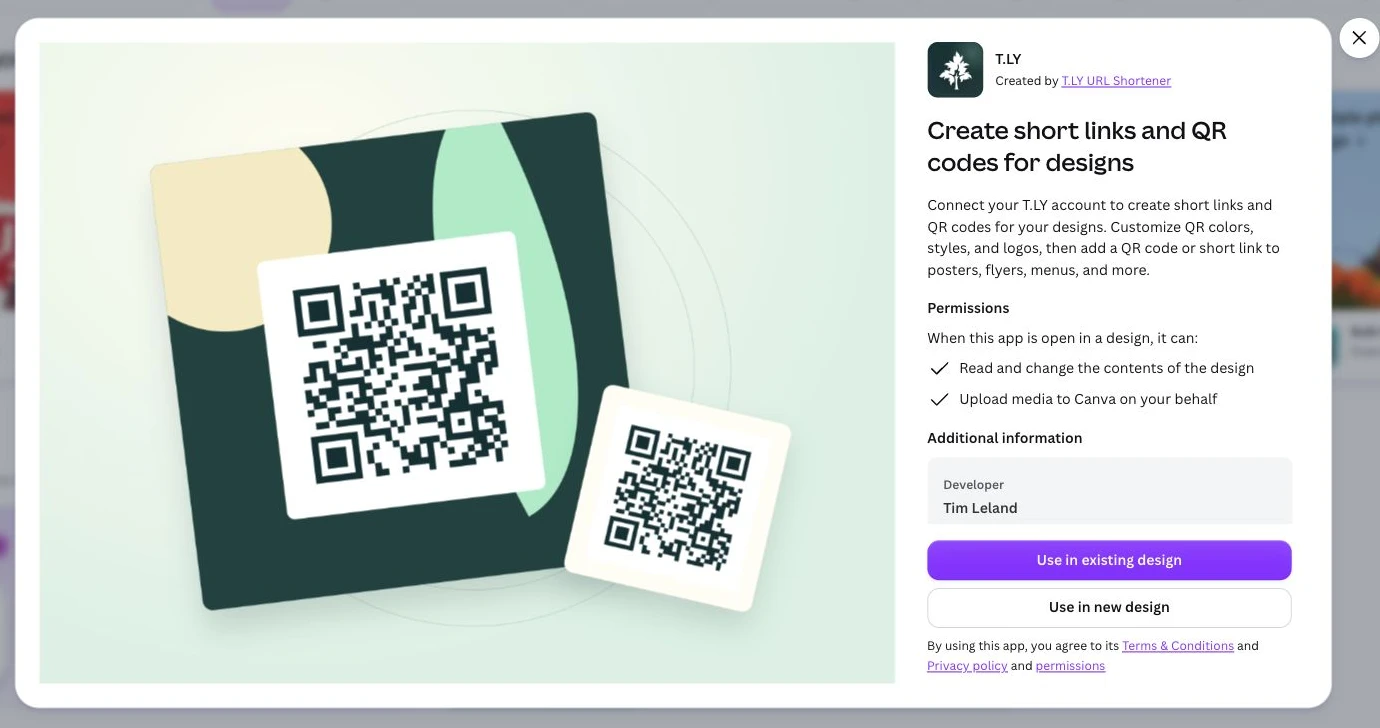
- Open the T.LY listing in Canva.
- Choose Use in existing design or Use in new design. You can also search for T.LY under Apps in the Canva editor.
- Review Canva's app permissions and open T.LY in your design.
- Select Connect when Canva asks you to connect your T.LY account. Sign in to T.LY and approve access.
Generate a short link and QR code
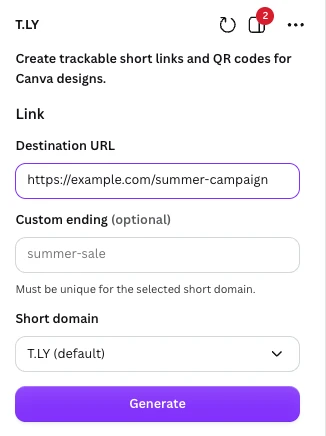
- Paste the page you want visitors to reach into Destination URL. Use the full URL, such as
https://example.com/summer-campaign. Add your campaign parameters before generating the link if you need them. - Optionally enter a Custom ending. It must be unique for the selected short domain. Leave it blank to let T.LY choose one.
- Choose a Short domain. Use T.LY or a domain available in your connected account.
- Select Generate. T.LY creates the short link and inserts its QR code into the current design.
Style the QR code and add URL text
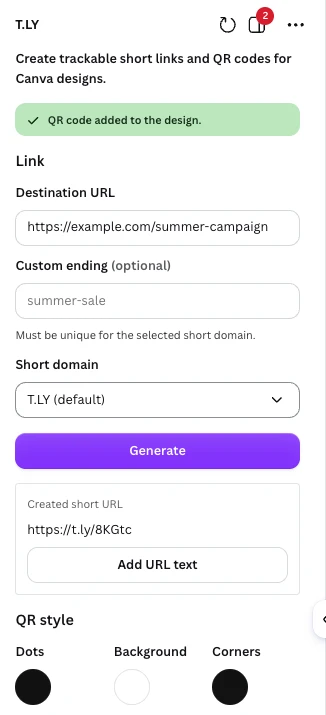
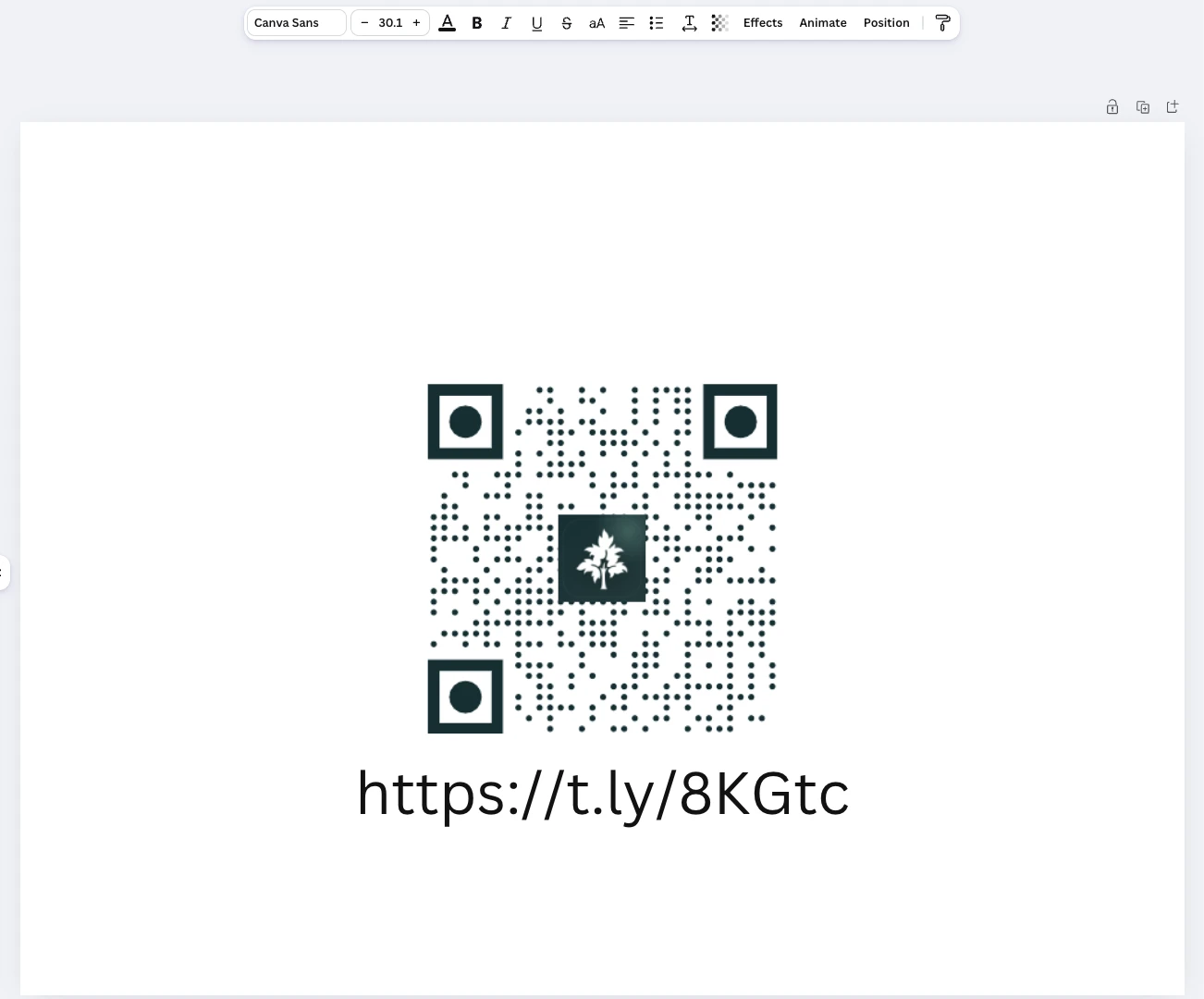
After generating a link, use QR style to change the Dots, Background, and Corners colors. Choose a Dot style and Corner style, or add an optional logo. Logo uploads accept PNG or JPG files up to 5 MB.
Keep the generated QR element selected while changing its style. Use Add URL text to insert the created short URL as a separate text element. Move and size the QR code and text with Canva's normal design controls.
Manage destinations and analytics
Links are created in your connected T.LY account. Open your T.LY dashboard to find the short URL, update its destination, or view analytics. The Canva panel is for creating and styling links; it does not include an analytics dashboard. For details, see managing short links and QR scan tracking.
Changing the destination of the same short link keeps the QR code usable without replacing it in your design. If you generate a different short link, use that link's QR code and update any printed URL text to match. Keep the T.LY link and account active.
Before you publish or print
Scan the QR code from your exported design and check the final destination. Keep strong contrast and a clear margin around the code. Test the printed size before ordering a full batch. See the QR printing guide and QR Code Image Analyzer.
Troubleshooting
- Connection failed or session expired: Reopen T.LY in Canva and complete the connection prompts. Check that you signed in to the intended T.LY account.
- Custom ending is taken: Choose a different ending or leave the field blank.
- Custom domain is missing: Confirm the domain is verified and available in the connected account. See custom domain setup.
- Generation failed: Check the destination URL, your T.LY plan, and your monthly link limit. If a short URL was already created, check the dashboard before generating another.
- Canva cannot add items: Use a design type that supports image and text elements, such as a poster or flyer.
- Logo upload failed: Choose a PNG or JPG file up to 5 MB and try again.
Disconnect and account access
Use the menu in Canva's T.LY app header and choose Remove from your apps to disconnect. Reopening the app will require a new connection. Removing the app does not delete short links already created in T.LY.
Canva asks permission to work with your design and add QR images. T.LY receives the destination URL and QR settings needed to create and style the link. Canva manages the account connection; the app does not ask you to paste a password or API key into its link form. Read the T.LY Privacy Policy for details.
Browse other T.LY integrations, or contact support if you need help.
Need more help?
If you still have questions, contact [email protected] or use the contact form. For abuse or suspicious links, use Report Abuse. For feature requests, email [email protected].
 Browser Extension