T.LY Is Now Available in Canva
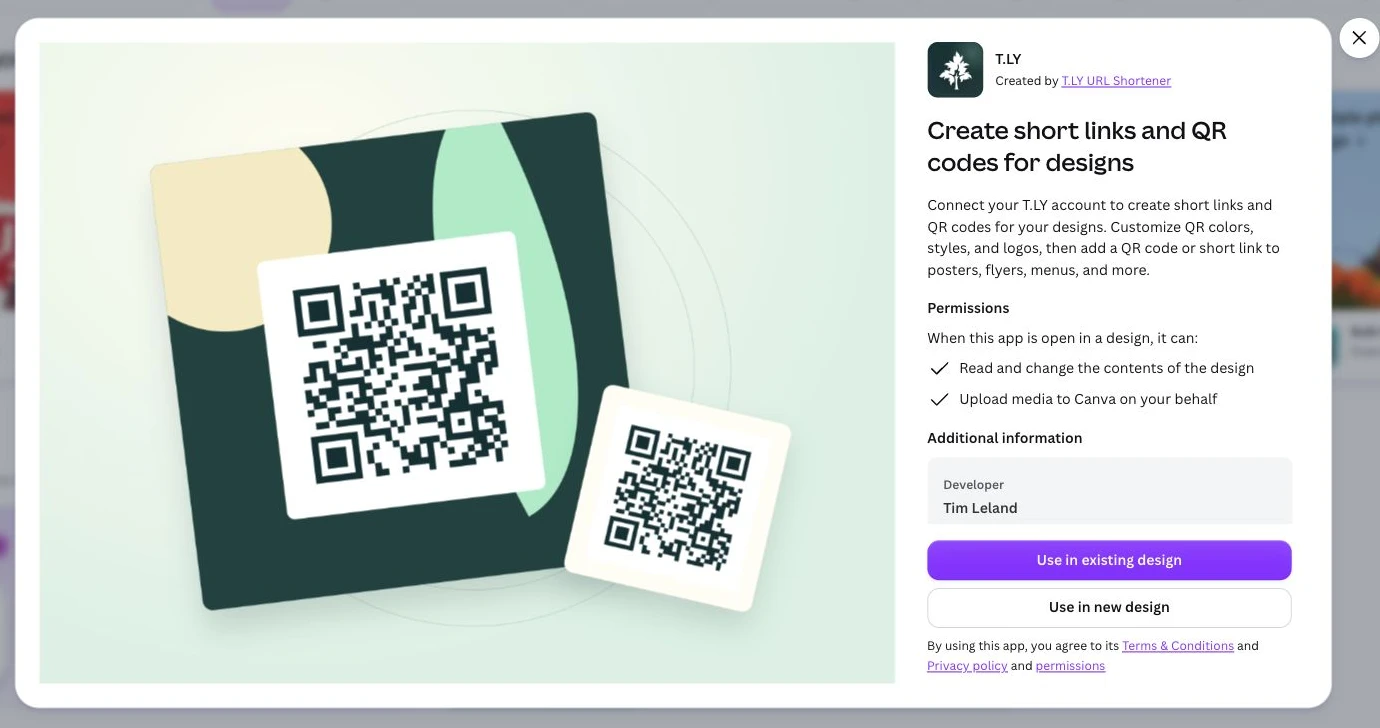
The T.LY app is now published in Canva. If you make flyers, menus, posters, or business cards in Canva, this add-on lets you create a T.LY short link and QR code right there in your design. Connect your T.LY account, paste the destination, and select Generate. The QR code is added to the page.
Create the link where you're designing
The app gives you the link controls you need before a design goes out the door:
- A destination URL for the page visitors should reach.
- An optional custom ending for a readable short URL.
- A short domain from your connected T.LY account.
- QR colors, dot and corner styles, and an optional logo.
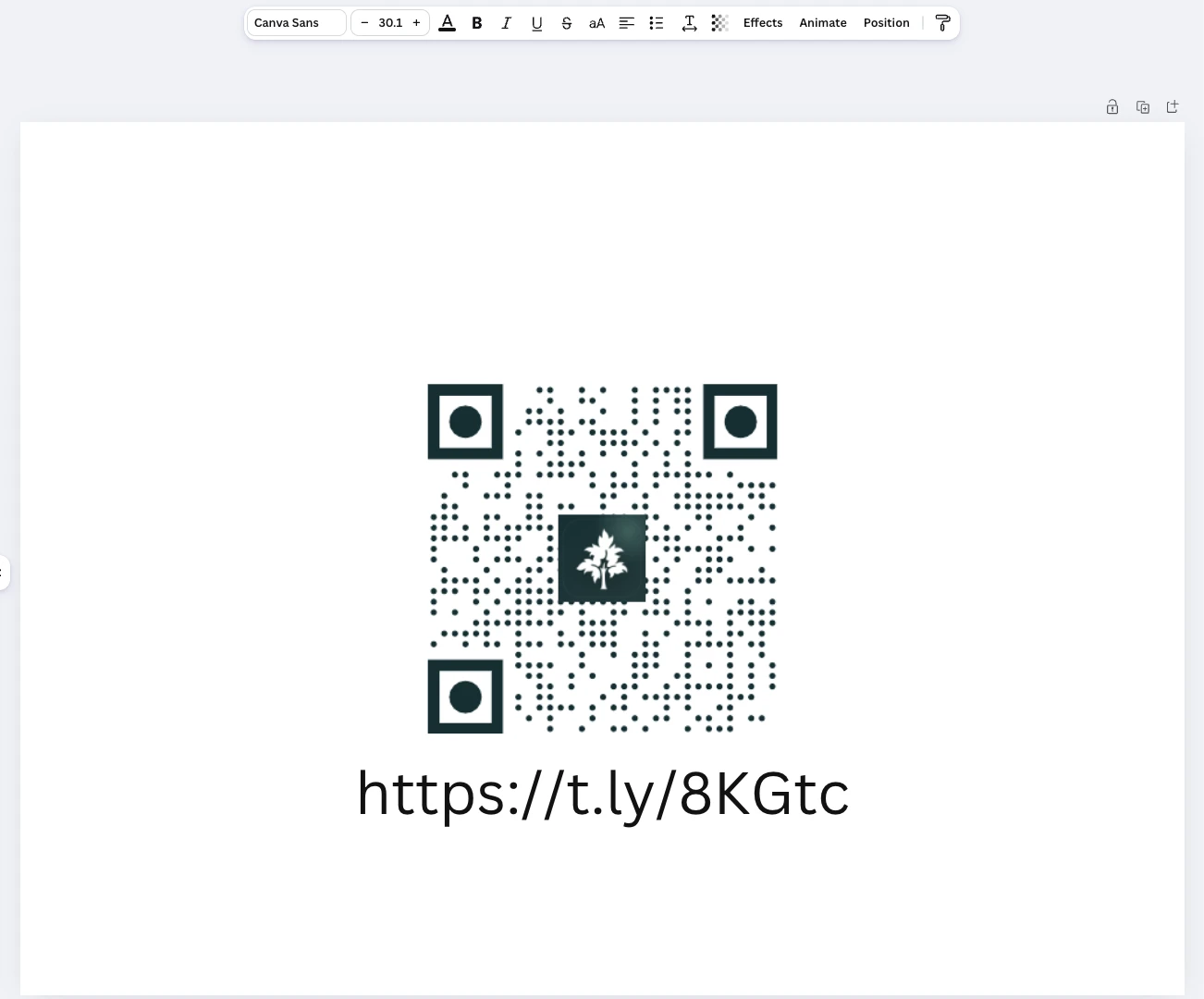
- Add URL text to put the short link next to the QR code.
Give people both options. They can scan the code or type the URL.
Get started in Canva
- Open the T.LY Canva listing and choose Use in existing design or Use in new design. You can also find T.LY under Apps in the Canva editor.
- Review the app permissions, select Connect, and sign in to T.LY to approve the account connection. No API key is needed.
- Paste your Destination URL, choose a Short domain, and add a Custom ending if you want one. Custom endings must be unique within that domain.
- Select Generate. Your short link is created and its QR code appears in the design.
- Style the QR code, then use Add URL text if you want the short URL on the page too.
You need a T.LY account with an active trial or paid plan. Your usual link limits and custom domain access apply. For the full walkthrough and common fixes, read the Canva help guide.
Match the design
Change the dots, background, and corner colors to fit your layout. Choose square or dot patterns and square or circle corners. Add a PNG or JPG logo up to 5 MB if you want your brand in the center.
The QR code and URL text are separate Canva elements, so you can place them where they make sense. Keep contrast strong and leave clear space around the QR code.
Keep control after the design is finished
A printed QR code should not lock you into an old landing page.
Links created in Canva belong to your connected T.LY account. Open the link in your T.LY dashboard to update the destination or check its analytics. Change the destination of the same short link and the existing QR code will keep sending people to the right place. Keep the link and account active.
The Canva app handles creation and styling. Link management and analytics live in T.LY.
Before sending a design to print, scan the QR code from the final export and check where it goes. Test it at the size people will actually use. Our QR printing guide covers sizing, contrast, and other checks worth doing before a large order.
Open T.LY in Canva, or follow the Canva setup guide. It joins our other integrations, including Google Sheets, WordPress, Zapier, and Pabbly.


Tim Leland
Useful Tools
Ready to improve how you manage links?
T.LY URL Shortener makes long links look cleaner and easier to share! Add your own Custom Domains to personalize your brand. Create Smart Links to customize a URL's destination. Generate QR codes to promote your business.
Start your 5-day trial Browser Extension