Redirects, Cache, and Short Links
When you shorten a link with T.LY, you’re creating a redirect. That little redirect does more work than most people realize. It not only determines how browsers and search engines treat your link, but it also interacts with something we all bump into eventually: cache.
Let’s break down how this works, why T.LY uses 301 in some cases and 302 in others, and what you can do if your browser feels “stuck” on an old destination.
Pro Tip: Try Incognito Mode First Before clearing your whole cache, open your link in an incognito/private window. If it works there, you know it’s just a local caching issue in your main browser.
The Difference Between 301 and 302 Redirects
301 Redirect (Permanent) A 301 tells the browser and search engines: “This link will always go here.” Because it’s permanent, browsers often cache that redirect aggressively. That’s great when the destination will never change, because it saves time and speeds things up. In some cases, your browser won't even go out to the internet to check if the redirect is still correct; it will just take you to that destination based on what it has saved locally.
Inside T.LY, we use 301 redirects for permanent links, the ones where you can’t edit the destination URL. Once a short link is locked in, it’s safe to treat it as permanent.
302 Redirect (Temporary) A 302 tells the browser: “This link goes here for now, but don’t assume that’s always true.” Because it’s temporary, browsers (and Google) won’t cache it as heavily.
On T.LY, any short link that you can update uses a 302 redirect. That way, if you decide tomorrow that your link should point to a different landing page, your visitors will go straight to the new destination without being stuck on yesterday’s cache.
Why Cache Can Be Tricky
The problem with cache is that your browser is trying to be too helpful. If you clicked a link once and your browser cached the 301, you might keep getting sent to the old destination even after you change it.
This usually only happens if you’ve been testing your own links and switching them around. Visitors clicking your links for the first time won’t run into this. But if you are testing and something looks off, clearing your cache can save a lot of headaches.
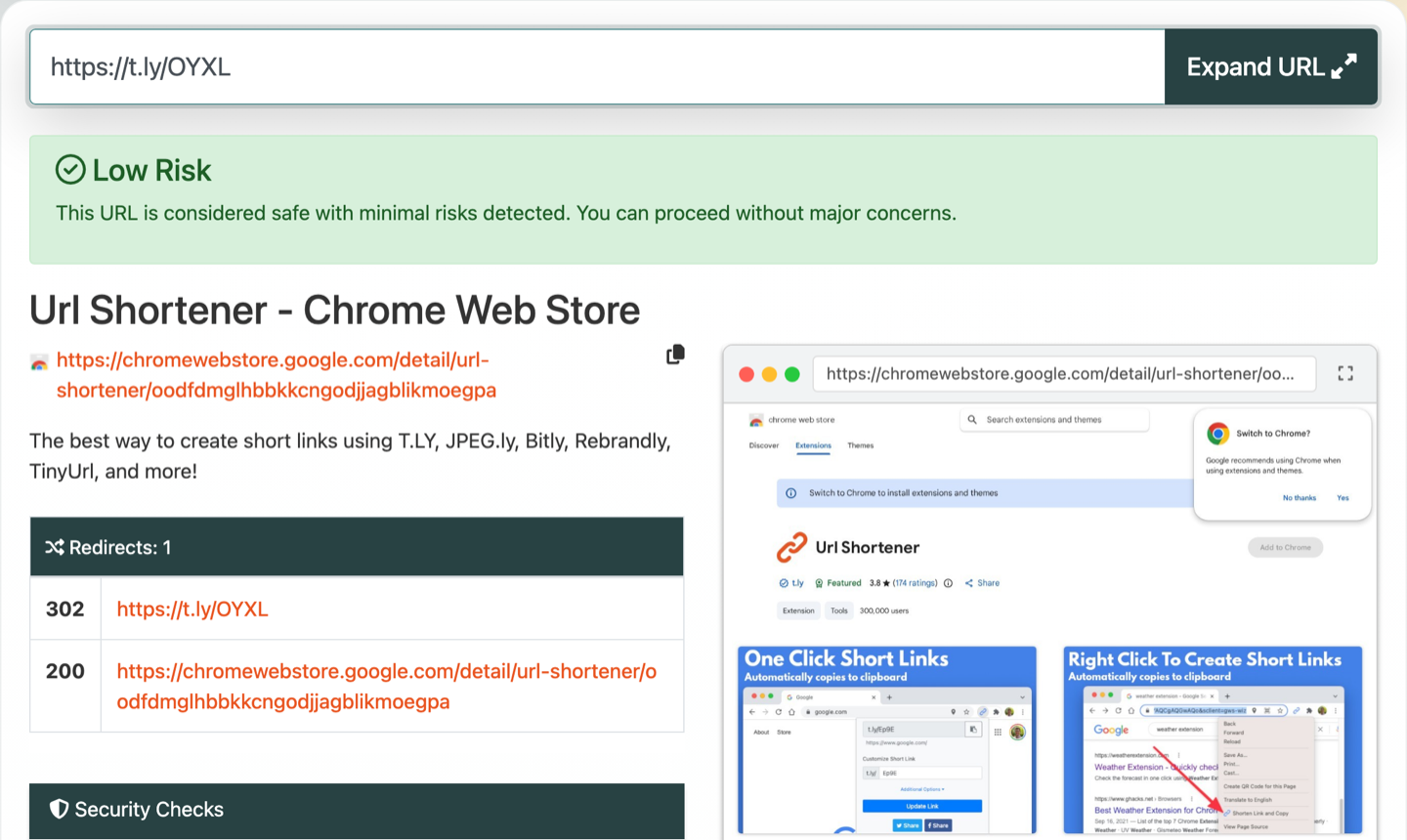
Pro Tip: Use the Link Expander Drop your short link into the Link Expander Tool. If it shows the correct destination but your browser doesn’t, you can confirm it’s a cache issue on your device.
How to Clear Your Browser Cache
Here’s the part everyone skips until they’re frustrated. The good news is that clearing the cache is quick once you know where to click. Here are the steps for each major browser:
Pro Tip: Clear Only What You Need Most browsers let you clear cached data for a single site. That’s faster and less disruptive than wiping your entire browsing history.
Google Chrome
- Click the three-dot menu in the top-right.
- Go to More Tools > Clear Browsing Data.
- Select Cached images and files.
- Choose a time range (I usually just pick “All time”).
- Hit Clear data.
Safari (Mac)
- In the menu bar, go to Safari > Settings.
- Click the Privacy tab.
- Choose Manage Website Data.
- Click Remove All (or search for a specific site if you only want to clear T.LY links).
Firefox
- Click the hamburger menu (three lines) in the top-right.
- Select Settings > Privacy & Security.
- Scroll down to Cookies and Site Data.
- Click Clear Data and make sure Cached Web Content is checked.
Microsoft Edge
- Click the three-dot menu in the top-right.
- Go to Settings > Privacy, search, and services.
- Under Clear browsing data, click Choose what to clear.
- Select Cached images and files.
- Hit Clear now.
Mobile Browsers
On iOS and Android, the process is similar. Look in your browser’s settings for “Privacy” or “Clear browsing data.” The key is making sure you’re clearing cached files, not just cookies.
Pro Tip: Check Another Device If you’re still unsure, open the short link on your phone or another computer. If it works there, it’s almost certainly your browser cache on the first device.
Troubleshooting with the Link Expander
Before you go clearing out your whole cache, there’s an easier way to check if the issue is really on your end. Try using the Link Expander Tool.
Just drop your short URL in, and it’ll show you the final destination it resolves to. If the expander shows the updated link but your browser still loads the old one, you know for sure it’s a local cache problem. If the link expander tool shows the old destination, then the link itself hasn’t been updated yet.
This is a quick sanity check I use all the time when I’m troubleshooting.
At T.LY, we designed our redirect system around how cache actually works. Permanent links get 301s because they’ll never change. Editable short links get 302s so they can stay flexible.
If you ever feel like your link isn’t updating the way you expect, 9 times out of 10, it’s your browser cache hanging onto the old destination. Start by checking with the URL Expander tool. If it looks right there, clear your cache, and you should be good to go.
Related Posts




Tim Leland
Useful Tools
Ready to improve how you manage links?
T.LY URL Shortener makes long links look cleaner and easier to share! Add your own Custom Domains to personalize your brand. Create Smart Links to customize a URL's destination. Generate QR codes to promote your business.
Start your 5-day trial Browser Extension