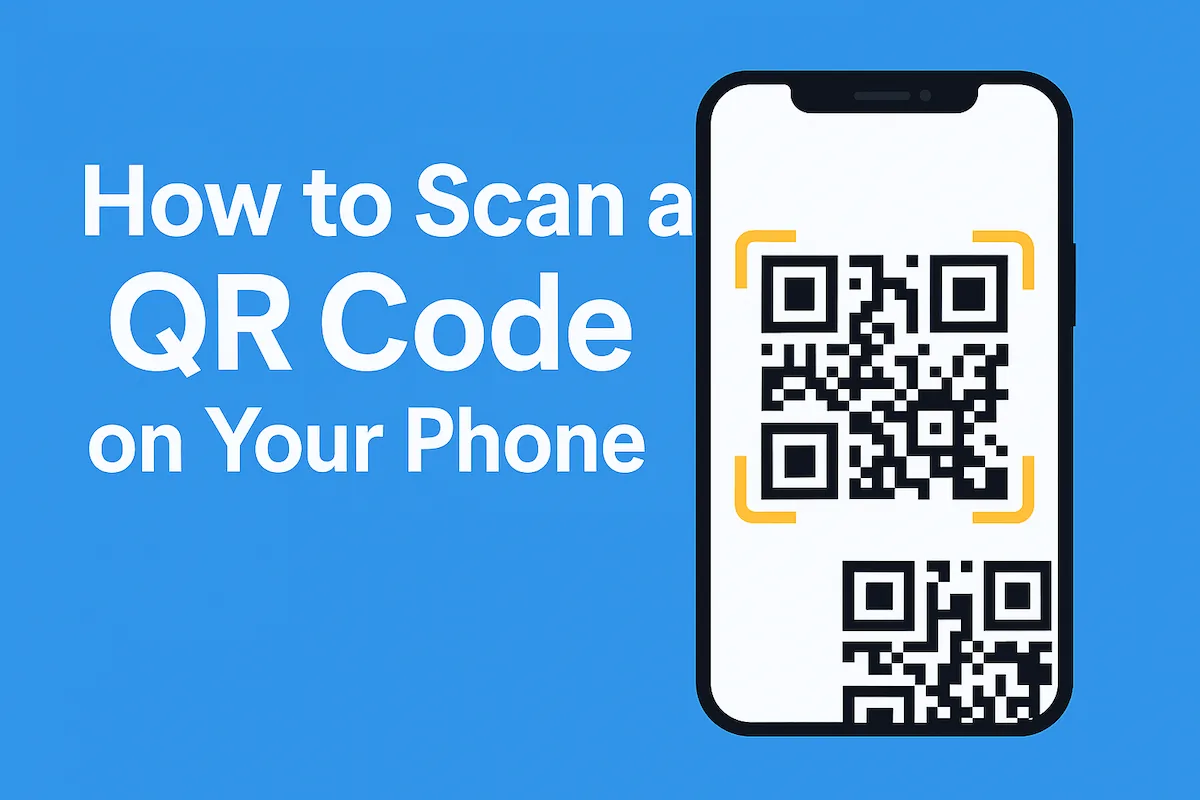
How to Scan a QR Code on Your Phone
When it comes to scanning QR codes, a lot has changed over the years. Most modern phones can now scan QR codes directly with the built-in camera or built-in OCR tools in iOS and Android.
1. How to Scan a QR Code With Your Camera (iPhone and Android)
On iPhone (iOS 14 through iOS 18+)
- Open the Camera app.
- Point it at the QR code. You do not need to take a photo.
- A yellow or white pop-up appears at the top of the screen.
- Tap it to open the link in Safari.
Watch an iPhone example on YouTube
Tip: If it does not scan, go to Settings -> Camera -> Scan QR Codes and make sure it is turned on. Here are some additional tips from Apple Support.
On Android
Most modern Android phones support QR code scanning by default.
- Open the Camera app.
- Make sure Google Lens suggestions are enabled.
- Point the camera at the QR code.
- Tap the link that appears at the bottom.
Watch an Android example on YouTube
If your phone does not detect it, look for a Lens icon inside the camera app and tap it. Here are some additional tips from Google Support.
2. How to Scan a QR Code Already in Your Photo Gallery
For more detail on screenshots, saved photos, and desktop images, see How to Scan a QR Code from a Picture.
How to scan a QR code in your gallery on iPhone
Apple calls this feature Live Text.
- Open the Photos app.
- Tap the image containing the QR code.
- Tap directly on the QR code or long-press it.
- A link should appear. Tap it to open.
If nothing happens:
- Look for the Live Text icon at the bottom
- Tap it to enable recognition
- Then tap the QR code again
How to scan a QR code in your gallery on Android
Android relies heavily on Google Lens.
- Open your Photos or Gallery app.
- Open the photo with the QR code.
- Tap the Lens icon.
- Lens will detect the QR code and display the link.
3. Scan Any QR Code Online
If the QR code is saved in your gallery, you can upload it directly in your browser and scan it instantly:
https://t.ly/tools/qr-code-scanner
This is especially useful for blurry photos, screenshots, tiny QR codes, or devices without built-in OCR.
Prefer a dedicated app? Download the free QR Code Scanner & Creator from the App Store or Google Play to scan live codes, screenshots, and saved photos. It also creates common QR codes and does not require an account.
4. Why Some QR Codes Do Not Scan
If a QR code is not working, common reasons include:
- The photo is blurry
- The QR code is cropped too tightly
- It is too dark or overexposed
- The colors are inverted
- The resolution is too low
- The code is distorted or printed incorrectly
If this happens, a browser-based scanner often solves it. If the code still will not scan, work through the QR code troubleshooting guide.
5. Make Your Own QR Codes
If you are scanning QR codes regularly, you may also want to create your own for business cards, menus, flyers, classrooms, and marketing campaigns.
Create free QR codes here: https://t.ly/tools/qr-code-generator
Related Posts




Tim Leland
Useful Tools
Ready to improve how you manage links?
T.LY URL Shortener makes long links look cleaner and easier to share! Add your own Custom Domains to personalize your brand. Create Smart Links to customize a URL's destination. Generate QR codes to promote your business.
Start your 5-day trial Browser Extension