How Split QR Code Phishing Works
A phishing email lands in an employee's inbox with a PDF attached. It says their compensation has changed and asks them to scan a QR code to read the details.
The PDF looks clean. There is no clickable link, no JavaScript, no macro, and no obvious embedded file. A basic security scan may not find much to object to.
But the QR code is the link.
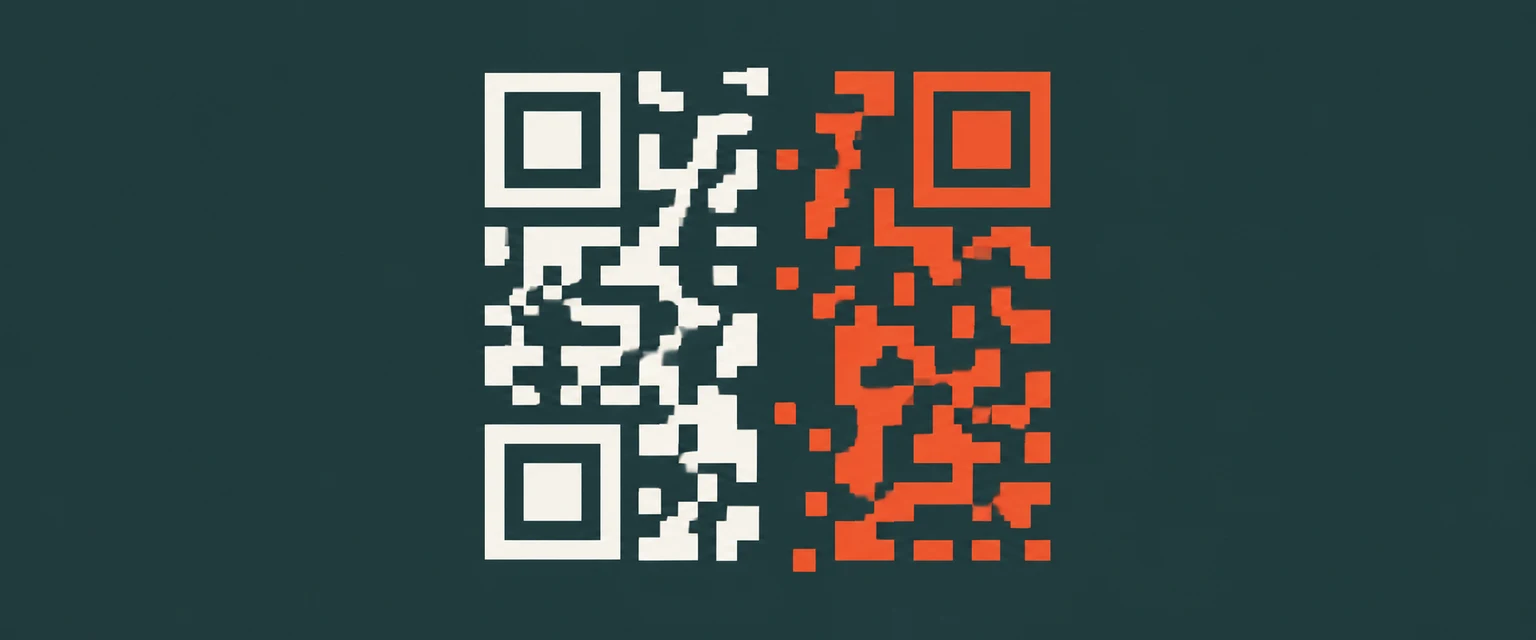
In a recent attack documented by Sublime Security, the code was not stored as one image. It had been cut into two pieces and placed side by side in the PDF. A person saw a complete, scannable QR code. A file scanner extracting the PDF contents saw two incomplete images that meant nothing on their own.
That is a smart bit of misdirection. It is also a good reminder that a document does not need a traditional link to send you to a phishing page.
How a split QR code gets past a basic scan
Most people look at the finished page. Automated tools often look at the parts used to build it.
Imagine cutting a printed QR code down the middle, then placing the two halves back together with no gap. Your phone camera sees the finished pattern and reads it normally. A tool that extracts images from the file may inspect each half separately. Neither half is a valid QR code, so the embedded URL can stay hidden.
This technique is not limited to PDFs. Barracuda has also documented split QR codes in phishing emails, where two separate images appear to the recipient as one complete code.
The important part is the difference between extracting the file and rendering what the person sees. A security tool needs to do both.
Why the phishing page may only appear on a phone
The QR code can be only the first layer.
After decoding the code, an analyst may try the URL on a desktop and see a blank page or an ordinary site. That does not always mean the link is harmless. A server can inspect the browser's user agent and other request details, then return different content to different visitors.
The phishing page might appear only when the request looks like it came from an iPhone or Android device. A desktop browser or automated sandbox gets a harmless response. The intended target, scanning with a phone, gets the fake login page.
This fits the broader reason QR phishing works so well. Microsoft says attackers use image-based QR codes in emails and attachments to get people onto mobile devices, often outside the protections watching a work computer. Microsoft also reported that PDFs made up 65% to 70% of the QR phishing delivery files it saw during the first quarter of 2026. See Microsoft's Q1 2026 email threat report.
So there may be several separate attempts to avoid detection:
- No normal link in the email body
- A PDF that contains no script or macro
- A QR code split across multiple images
- A destination that shows the phishing page only to certain devices
None of these tricks is magic. Together, though, they create enough gaps for a convincing message to reach a real person.
The safest habit: decode first, open second
Scanning a QR code and opening its link should be two separate decisions.
The default camera app on a phone may show a short preview, but people often tap it immediately. A better workflow is to decode the code, read the full destination, and stop if the domain or context does not make sense.
If the code is in an email, PDF, or screenshot, do not extract the individual images. Take a screenshot of the complete rendered code as it appears on the page. That preserves the full pattern, including a code assembled from multiple image pieces.
Then use one of these options:
On iPhone or Android: use the QR Code Scanner & Creator app
The free T.LY QR Code Scanner & Creator for iPhone and Android can scan with the camera or read a QR code from a screenshot or saved photo. It shows the link before opening it, so you have a chance to inspect the domain first.
There is no account, no subscription, and no scan limit. Photo and camera scans are processed on the device.
For a PDF on your computer, you can point the app at the complete QR code on the screen. If the PDF is already on your phone, take a screenshot and select it from Photos.
In a browser: use the QR Code Inspector
On a desktop or mobile browser, open the free T.LY QR Code Inspector. Use the camera or upload a PNG, JPG, WebP, or screenshot of the complete code.
The image is decoded in your browser. If it contains a web address, the inspector shows the URL, follows its redirect path, and provides available destination details before you decide whether to visit it.
This is more useful than opening the QR link first and trying to work backward after something feels wrong.
What to check in the decoded URL
Start with the actual domain, not the logo or page design.
- Does the domain belong to the company that supposedly sent the message?
- Is the brand name misspelled or padded with extra words and hyphens?
- Does the link use an unfamiliar shortener or pass through several unrelated domains?
- Why would an HR, payroll, bank, or delivery notice require a QR code instead of using its normal app or website?
- Is the message using money, fear, or a deadline to rush you?
If the message claims to be from your employer, bank, shipping company, or another service you use, skip the QR link. Open the official app or type the known website yourself. Contact the sender through a separate channel if needed.
And do not enter a password, payment card, one-time code, or other sensitive information just because the page looks familiar. Copying a Microsoft or payroll login screen is easy.
A decoded link is useful, not a guarantee
This part matters: a scanner cannot prove that a link is safe.
It can reveal the hidden URL, show redirects, and point out warning signs. That gives you more information before the browser opens the page. It does not control what the destination may serve later or what it may show to a different device.
A mobile-only phishing page is a perfect example. A server-side inspection may receive the harmless desktop response while the phone receives something else. A newly created phishing domain may also have no reputation history yet.
Treat the result as evidence, not a green light. If the source is unexpected or the request does not make sense, the right move is still to close it and report the message.
The PDF was not really clean
"No links, no scripts, no macros" sounds reassuring, but it is too narrow for modern phishing.
The finished page contained a machine-readable link, assembled in a way that some tools would miss.
When an unexpected message asks you to scan a QR code, pause. Inspect the complete code, check the domain, and question the request. If it claims to be from a service you use, open that service's official app or website yourself.
For a broader checklist, read How to Check if a QR Code Is Safe Before You Open It.
Related Posts




Tim Leland
Useful Tools
Ready to improve how you manage links?
T.LY URL Shortener makes long links look cleaner and easier to share! Add your own Custom Domains to personalize your brand. Create Smart Links to customize a URL's destination. Generate QR codes to promote your business.
Start your 5-day trial Browser Extension