How to Check If a VPN or Proxy Is Working
When a VPN or proxy is working, websites should see different network details than they see on your normal connection.
The fastest check is still the boring one: compare your public IP before and after you connect.
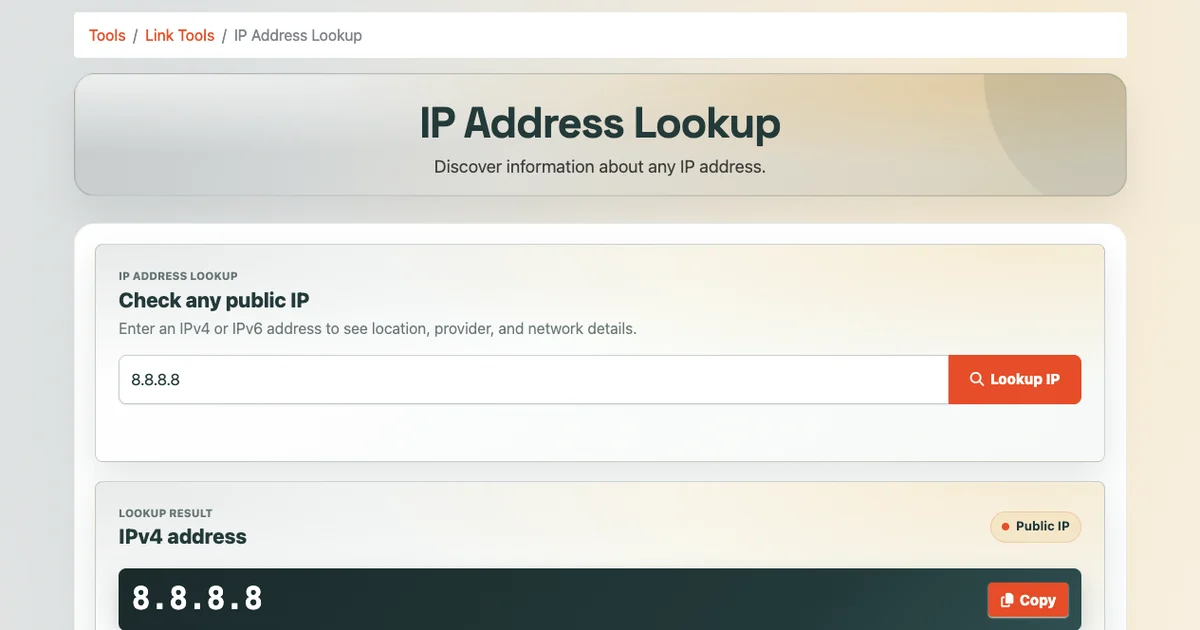
Use the T.LY What Is My IP Address tool for a quick check. It shows your public IP, approximate location, ISP, ASN, organization, and VPN or proxy status.
Fast VPN check
- Disconnect from the VPN or proxy.
- Open What Is My IP Address.
- Note the public IP address, location, ISP, and VPN or proxy status.
- Connect to the VPN or proxy.
- Reload the page.
- Compare the results.
If the VPN is working, the public IP should usually change. The ISP or organization may also switch to the VPN provider, a hosting company, or the network behind that VPN server.
What should change when a VPN is working?
The public IP address is the main signal.
Before VPN:
- IP address belongs to your normal ISP
- location is near your real region or ISP gateway
- ISP shows your home, office, or mobile provider
After VPN:
- IP address changes
- location may shift to the VPN server region
- ISP or organization may show the VPN provider, cloud host, or data center
- VPN or proxy detection may show a positive signal
If none of those details change, your browser traffic probably is not using the VPN.
What if the location changes but the IP does not?
That is uncommon. In most cases, if the public IP address stays exactly the same, your visible connection did not change.
There are exceptions with cached pages, browser extensions, or testing mistakes. Reload the page and try a private window if the result looks odd.
The public IP address is the most direct signal. Location can be less reliable because IP geolocation is only an estimate.
What if the IP changes but the VPN is not detected?
VPN and proxy detection is useful, but it is not perfect.
Some VPNs use data center networks that are easy to identify. Others use residential or less obvious networks. Some proxies are detected quickly, while others may not be labeled in every database.
If the IP address, ISP, organization, and location all changed after connecting, your traffic is likely routing differently even if the VPN or proxy label does not appear.
Check for DNS leaks
A VPN can change your public IP address while DNS requests still use your normal ISP or local network.
That is called a DNS leak.
For a basic check:
- Connect to your VPN.
- Check your public IP with What Is My IP Address.
- Use the DNS Lookup tool or your VPN provider's DNS leak test.
- Confirm DNS requests are not being routed through your normal ISP when they should not be.
If you are only troubleshooting normal browsing, this may not matter much. If you rely on a VPN for privacy, DNS behavior matters.
Check the right browser and device
Make sure you test the same browser and device where you need the VPN or proxy to work.
For example:
- a browser extension proxy may only affect that browser
- a system VPN should affect most apps on the device
- a router-level VPN affects devices using that router
- a work VPN may route only company traffic
It is possible for one browser to use a proxy while another browser uses your normal connection.
Common reasons a VPN check fails
If your IP address does not change, look for these issues:
- the VPN app says connected but the tunnel dropped
- split tunneling excludes your browser
- browser proxy settings override the VPN
- a corporate network controls outbound routing
- the VPN only routes private work resources
- the browser page was cached
- IPv6 traffic is leaking outside an IPv4-only VPN
The last one is easy to miss. If a VPN only handles IPv4 but your device uses IPv6, some traffic may still expose an IPv6 address. See IPv4 vs IPv6: What Is the Difference? for the plain-English version.
VPN and proxy check summary
To check if a VPN or proxy is working, compare your public IP details before and after connecting.
Look for changes in:
- public IP address
- country, region, or city
- ISP
- organization
- ASN
- VPN or proxy signal
Start with the T.LY What Is My IP Address tool. If you need a stricter privacy check, run a DNS leak test too.



Tim Leland
Useful Tools
Ready to improve how you manage links?
T.LY URL Shortener makes long links look cleaner and easier to share! Add your own Custom Domains to personalize your brand. Create Smart Links to customize a URL's destination. Generate QR codes to promote your business.
Start your 5-day trial Browser Extension